# Connect Google Reviews, Play Store and App Store to Robylon
Connect Google My Business, Google Play Store and the App Store to Robylon so new reviews reach your inbox, and learn what each connection needs and how to disconnect.
> Source: https://www.robylon.ai/docs/reviews/connect
> Section: Reviews
Robylon can read and reply to reviews from three places: **Google My Business** (your Google reviews), **Google Play Store** and **App Store**. Once a review channel is connected, every new written review becomes a conversation in Robylon that an AI agent or a teammate can answer, and the reply is posted back on the platform.
Connect them from **Settings → Channels → All Channels**. All three are listed under **Other Channels** until you connect them.
## What does each review channel need?
Google My Business and Google Play Store use a Google sign-in. The App Store uses an App Store Connect API key that you paste in.
| Channel | How you connect | What you need |
| --- | --- | --- |
| **Google My Business** | Sign in with Google and approve access | A Google account that manages your Business Profile, with at least one location |
| **Google Play Store** | Sign in with Google and approve access | A Google account with access to your app in Google Play Console |
| **App Store** | Paste your API key details into a form | A **Key ID**, **Issuer ID** and **Private Key** from App Store Connect, and the **App IDs** of your apps |
If you don't see these channels in your list, contact your account manager or [support@robylon.ai](mailto:support@robylon.ai).
## How do I connect Google My Business?
Click **Google My Business** under **Other Channels**, sign in with the Google account that manages your Business Profile, and approve access.
Robylon reads the Business Profile account on that Google login and adds all of its locations. The connection fails if the account has no locations. Locations you add to the Business Profile later are picked up automatically, so you don't need to reconnect.
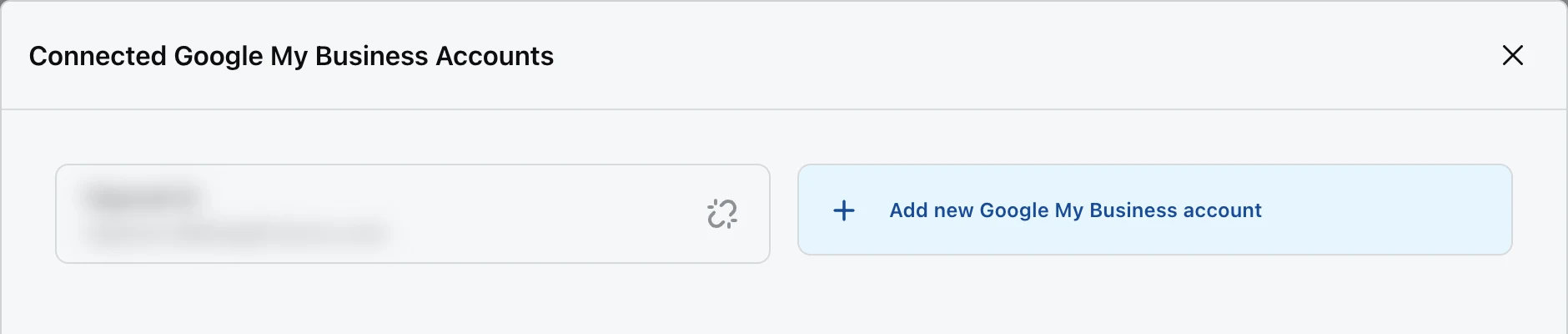
You can connect more than one Google account. Each one is kept as a separate account on the channel.
 ## How do I connect Google Play Store?
Click **Google Play Store** under **Other Channels**, sign in with a Google account that has access to your app in Google Play Console, and approve access.
After you sign in, email [support@robylon.ai](mailto:support@robylon.ai) with your app's package name (for example `com.yourcompany.app`). The Robylon team links it to your connection, and reviews start arriving. You can link more than one app to the same Google account, and connect more than one Google account.
## How do I connect the App Store?
Create an App Store Connect API key, then paste its details into Robylon.
In App Store Connect, go to **Users and Access → Integrations → App Store Connect API** and generate a team key. Give it a role that can respond to customer reviews, such as **Customer Support**, **App Manager** or **Admin**. Download the private key file (.p8) and note the **Key ID** and the **Issuer ID** shown on that page.
In App Store Connect, open your app and go to **App Information**. The **Apple ID** is the number you need, for example 1234567890.
In Robylon, go to **Settings → Channels → All Channels** and click **App Store** under **Other Channels**.
Enter the **Key ID** and **Issuer ID**, and paste the full contents of the .p8 file into **Private Key**. Under **App IDs**, click **Add App ID** for each app whose reviews you want in Robylon.
Click **Continue**.
## What happens after I connect?
Robylon starts checking the platform for new reviews about every 10 minutes. Each new review becomes its own conversation in Robylon, and the workflow you set up for that channel runs on it. See [Reply to reviews](https://www.robylon.ai/docs/reviews/reply-to-reviews).
A few things to know:
- **Only recent reviews are imported.** Robylon picks up reviews from the last 2 days. Older reviews already on the platform are not imported.
- **Reviews that already have a reply are skipped** on Google Play Store and Google My Business. On the App Store they are imported, but you can only add internal notes to them.
- **A workflow must be listening.** Add a workflow with the **When a user posts a review** trigger for the channel and account. Without one, new reviews do not get an automatic reply. See [Triggers](https://www.robylon.ai/docs/product/triggers).
- **New options appear across the dashboard:** a **Reviews** group in [simple automations](https://www.robylon.ai/docs/reviews/reply-to-reviews#can-i-use-simple-automations-on-reviews), a **Reviews** channel group when you create an [AI agent](https://www.robylon.ai/docs/ai-agents/custom-ai-agents), a **Reviews** limit on the [Assignment Limit](https://www.robylon.ai/docs/human-users/assignment) page, a **Reviews** panel type in the [inbox panel](https://www.robylon.ai/docs/inbox/inbox-panel) settings, and data in **Analytics & Insights → Ratings & Reviews**.
## How do I disconnect a review channel?
Open the channel from **Connected Channels** on the **All Channels** page and disconnect it.
On Google My Business and Google Play Store you disconnect one Google account at a time. When the last account is removed, the channel is turned off. On the App Store, disconnecting turns off the whole channel.
After you disconnect, Robylon stops importing new reviews from that channel. Conversations already in Robylon stay in your inbox.
## How do I connect Google Play Store?
Click **Google Play Store** under **Other Channels**, sign in with a Google account that has access to your app in Google Play Console, and approve access.
After you sign in, email [support@robylon.ai](mailto:support@robylon.ai) with your app's package name (for example `com.yourcompany.app`). The Robylon team links it to your connection, and reviews start arriving. You can link more than one app to the same Google account, and connect more than one Google account.
## How do I connect the App Store?
Create an App Store Connect API key, then paste its details into Robylon.
In App Store Connect, go to **Users and Access → Integrations → App Store Connect API** and generate a team key. Give it a role that can respond to customer reviews, such as **Customer Support**, **App Manager** or **Admin**. Download the private key file (.p8) and note the **Key ID** and the **Issuer ID** shown on that page.
In App Store Connect, open your app and go to **App Information**. The **Apple ID** is the number you need, for example 1234567890.
In Robylon, go to **Settings → Channels → All Channels** and click **App Store** under **Other Channels**.
Enter the **Key ID** and **Issuer ID**, and paste the full contents of the .p8 file into **Private Key**. Under **App IDs**, click **Add App ID** for each app whose reviews you want in Robylon.
Click **Continue**.
## What happens after I connect?
Robylon starts checking the platform for new reviews about every 10 minutes. Each new review becomes its own conversation in Robylon, and the workflow you set up for that channel runs on it. See [Reply to reviews](https://www.robylon.ai/docs/reviews/reply-to-reviews).
A few things to know:
- **Only recent reviews are imported.** Robylon picks up reviews from the last 2 days. Older reviews already on the platform are not imported.
- **Reviews that already have a reply are skipped** on Google Play Store and Google My Business. On the App Store they are imported, but you can only add internal notes to them.
- **A workflow must be listening.** Add a workflow with the **When a user posts a review** trigger for the channel and account. Without one, new reviews do not get an automatic reply. See [Triggers](https://www.robylon.ai/docs/product/triggers).
- **New options appear across the dashboard:** a **Reviews** group in [simple automations](https://www.robylon.ai/docs/reviews/reply-to-reviews#can-i-use-simple-automations-on-reviews), a **Reviews** channel group when you create an [AI agent](https://www.robylon.ai/docs/ai-agents/custom-ai-agents), a **Reviews** limit on the [Assignment Limit](https://www.robylon.ai/docs/human-users/assignment) page, a **Reviews** panel type in the [inbox panel](https://www.robylon.ai/docs/inbox/inbox-panel) settings, and data in **Analytics & Insights → Ratings & Reviews**.
## How do I disconnect a review channel?
Open the channel from **Connected Channels** on the **All Channels** page and disconnect it.
On Google My Business and Google Play Store you disconnect one Google account at a time. When the last account is removed, the channel is turned off. On the App Store, disconnecting turns off the whole channel.
After you disconnect, Robylon stops importing new reviews from that channel. Conversations already in Robylon stay in your inbox.