# Workflow Version History: View and Restore Past Versions
See every published version of a workflow, preview an older one, and restore it to your working copy before publishing again.
> Source: https://www.robylon.ai/docs/product/version-history
> Section: Automation
Every time you publish a workflow, Robylon saves a snapshot of it. Version history lets you see how the workflow looked at any point and roll back a change that did not work.
Open a workflow from **Settings → Workflows & AI Agents → Workflows**, then click the **History** icon (the clock) next to **Edit** at the top of the builder.
AI agents have their own, separate history. See [AI agent version history](https://www.robylon.ai/docs/ai-agents/version-history).
## How do drafts and published versions work?
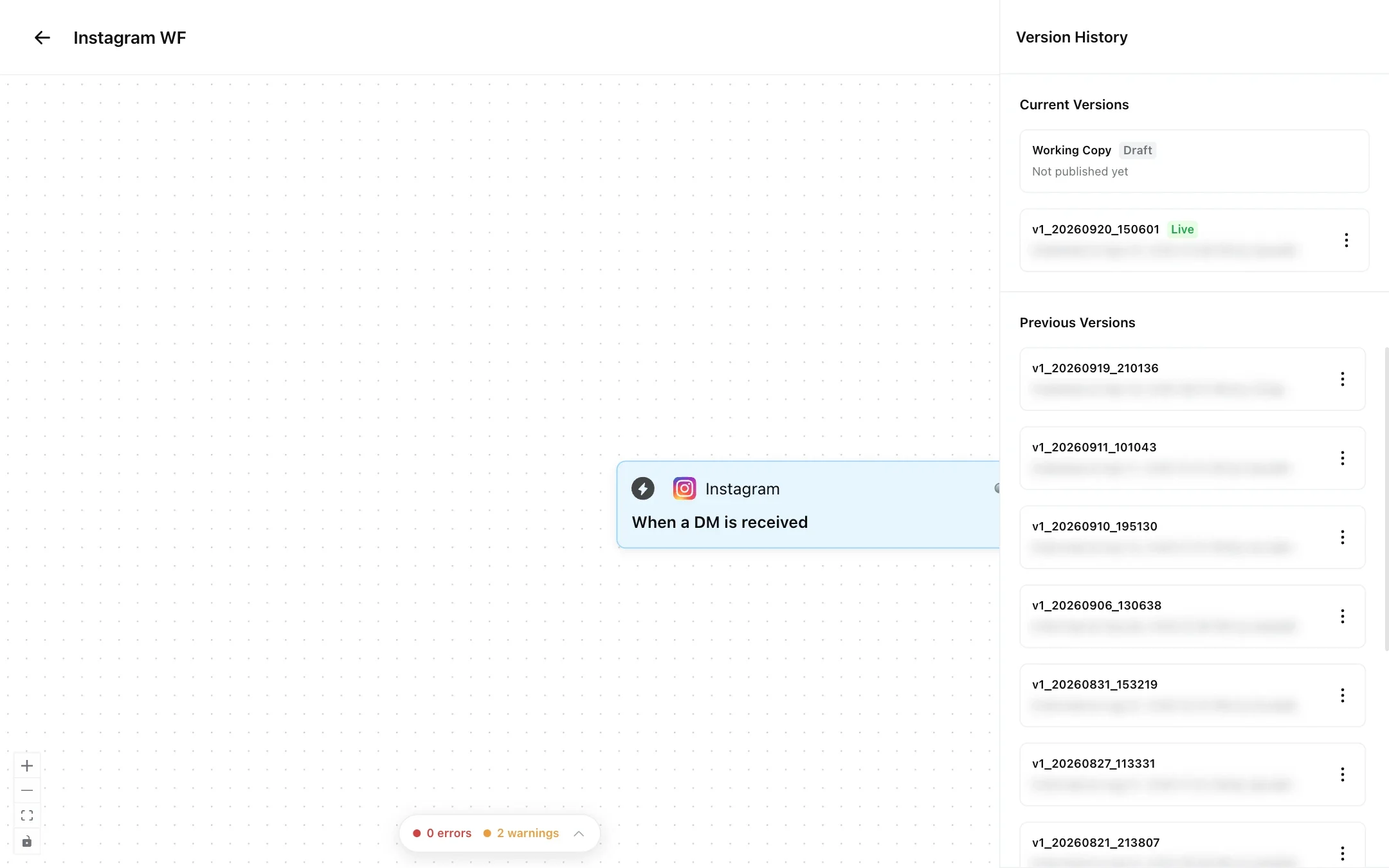
A workflow has two current versions:
* **Working Copy:** the draft you edit in the builder. It shows **Not published yet** until you publish it. Your changes do not affect customers until then.
* **Live:** the version that runs on the workflow's triggers. It is read-only.
When you publish, the working copy becomes the live version and the old live version moves to **Previous Versions**, with the date, time and who published it. Publishing also replaces the workflow's triggers with the ones in the new version.
When you unpublish a workflow, its triggers stop, its status becomes **Paused**, and the latest version is marked as unpublished.
## How do I look at an older version?
Click the version in the **Version History** panel. The canvas shows that version's blocks and triggers so you can read them. Nothing changes until you restore it.
 ## How do I restore an older version?
In **Version History**, click the version you want or open its menu (**⋮**).
Click **Restore this version**. The version replaces your working copy.
Review the workflow in the builder, then publish. Until you publish, the current live version keeps running.
Restoring overwrites your working copy, including any unpublished changes.
## Does restoring a workflow change its AI agents?
No. Restoring a workflow keeps the current version of any AI agent inside it. Agents are versioned separately: to roll back an agent, use [AI agent version history](https://www.robylon.ai/docs/ai-agents/version-history).
## Can I restore a simple automation?
No. Simple automations have no version history. Version restore is only available for workflows, not for [simple automations](https://www.robylon.ai/docs/simple-automations).
## How do I restore an older version?
In **Version History**, click the version you want or open its menu (**⋮**).
Click **Restore this version**. The version replaces your working copy.
Review the workflow in the builder, then publish. Until you publish, the current live version keeps running.
Restoring overwrites your working copy, including any unpublished changes.
## Does restoring a workflow change its AI agents?
No. Restoring a workflow keeps the current version of any AI agent inside it. Agents are versioned separately: to roll back an agent, use [AI agent version history](https://www.robylon.ai/docs/ai-agents/version-history).
## Can I restore a simple automation?
No. Simple automations have no version history. Version restore is only available for workflows, not for [simple automations](https://www.robylon.ai/docs/simple-automations).