# Workflow Triggers: Start a Workflow on Chats, Tickets and Calls
See every event that can start a workflow, by channel, and learn how to add channel, API, webhook and internal triggers.
> Source: https://www.robylon.ai/docs/product/triggers
> Section: Automation
A trigger decides when a workflow starts. It listens for an event, for example a new ticket, and runs the workflow when it happens. A workflow can have more than one trigger.
Add triggers from the start block of a workflow in [**Settings → Workflows & AI Agents → Workflows**](https://app.robylon.ai/settings/automations).
## Add a trigger
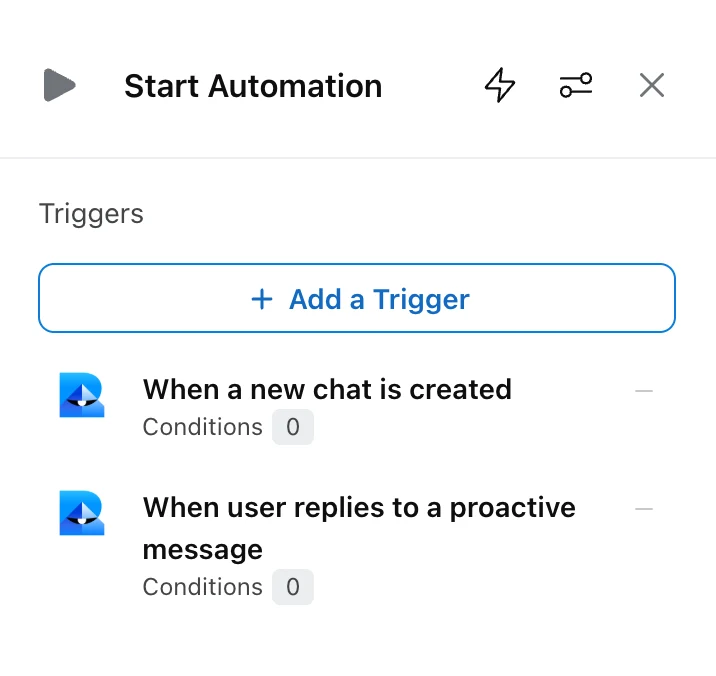
Open the workflow and click its first block, **Start Automation**.
Click **Add a Trigger** and choose the **Type of Trigger**: **Channel Trigger**, **API Trigger**, **Webhook Trigger** or **Internal Trigger**.
For a channel trigger, choose the **Channel**, then the event under **Trigger**. Some channels ask for more. For example, Robylon Chat asks which chatbot, and lets you pick a **Default Agent** to start the conversation.
Under **Add Condition**, click **Add** and choose **Add Logic** or **Add Logic Group** to run the workflow only for some events, for example only tickets from one email address.
Click **Add Trigger**, then publish the workflow. Triggers only start published workflows.
The start block shows how many conditions each trigger has. Conditions are checked on ticket triggers for Robylon Email, Freshdesk, Zendesk, Zoho Desk, Vtiger and Salesforce, and on Shopify webhook triggers. Other triggers start the workflow whatever the conditions say.
 ## Events that start a workflow
Channel triggers depend on the channel.
| Channel | Events |
| --- | --- |
| Robylon Email and helpdesks (Freshdesk, Zendesk, Zoho Desk, Vtiger) | When a new ticket is created · When a ticket is updated · When a ticket receives a reply · When a ticket workflow terminates abruptly |
| Salesforce tickets | When a new ticket is created · When a ticket receives a reply |
| Robylon Chat | When a new chat is created · When a chat is handed over outside office hours · When a chat workflow terminates abruptly · When a chat workflow gets a no match · When a user becomes unresponsive during chat · When user replies to a proactive message · When the embedded FAQ chatbot loads on a page |
| WhatsApp, Freshchat, Intercom, SalesIQ and Twilio Text | The chat events above, except the proactive message and FAQ chatbot events |
| Instagram and Facebook | When a DM is received · When a comment or mention is received · plus the out-of-office, terminates abruptly, no match and unresponsive events |
| X | When a DM is received · When the account is mentioned or replied to · plus the out-of-office, terminates abruptly, no match and unresponsive events. See [X](https://www.robylon.ai/docs/channels/x) |
| Slack | When a new Slack message is received (a DM, an @mention, or a message in a channel the bot is in) · plus the out-of-office, terminates abruptly, no match and unresponsive events |
| Microsoft Teams | When the bot receives a DM · When a message is posted in a group |
| YouTube | When a new comment is received · When a reply is received on a comment |
| Google Play Store, App Store and Google My Business | When a user posts a review |
| Voice | When a new voice call is starting · When a voice call has ended |
Shopify events use a [webhook trigger](https://www.robylon.ai/docs/developers/workflow-triggers) instead.
## Triggers for additional accounts
Some channels need a new trigger for each account. On channels where the trigger asks you to **Select an Account**, for example WhatsApp, each trigger listens to one account only. If you connect a new WhatsApp number, add a new trigger to the workflow with that number selected. Existing triggers do not cover it.
## Chat events
* **When a new chat is created:** the customer starts a conversation. This is the main entry point for chat.
* **When a chat is handed over outside office hours:** a handover to your team happens outside your [business hours](https://www.robylon.ai/docs/human-users/business-hours). Use it to set expectations or collect details.
* **When a chat workflow terminates abruptly:** a workflow on the chat stopped because of an error. Use it to recover, for example by handing over to a person.
* **When a chat workflow gets a no match:** the customer's reply did not match any option a Listen block was waiting for.
* **When a user becomes unresponsive during chat:** the customer has not replied for a set time. You choose the duration.
* **When user replies to a proactive message:** the customer replies to a [proactive message](https://www.robylon.ai/docs/outbound/proactive-messages), so you can start a flow for that message.
* **When the embedded FAQ chatbot loads on a page:** an embedded FAQ chatbot loads, so you can show [product FAQs](https://www.robylon.ai/docs/chatbot/product-faqs) or suggestions.
## The Default Agent on a chat trigger
When you add a **When a new chat is created** trigger on Robylon Chat, you can choose a **Default Agent**. That AI agent starts every new conversation on the chatbot. It can be the [triage agent](https://www.robylon.ai/docs/ai-agents/triage-agent) (the master agent), which routes to sub-agents, a [sub-agent](https://www.robylon.ai/docs/ai-agents/sub-agents) directly, or a [single agent](https://www.robylon.ai/docs/ai-agents/single-agents). See [how a conversation reaches an AI agent](https://www.robylon.ai/docs/ai-agents/custom-ai-agents#how-a-conversation-reaches-an-ai-agent).
Each channel account can have only one active **new chat** or **new ticket** trigger, so there is one entry point per channel.
## How the API and webhook triggers work
The **API** trigger starts a workflow from your own system, and the **Webhook** trigger starts one from Shopify events. See [Workflow API and webhook triggers](https://www.robylon.ai/docs/developers/workflow-triggers).
## Internal triggers
An **Internal Trigger** has no channel event. It lets other workflows run this workflow with the [Component](https://www.robylon.ai/docs/product/logic#how-the-component-block-works) block. Use it for shared steps that several workflows need, for example verifying a customer.
## Data a trigger provides
Every run starts with built-in variables filled from the event, which you can use in any block:
* **Chat and ticket:** `{chat_history}`, `{last_user_message}`, `{user_email}`, `{user_phone_number}`, `{chat_id}`, `{user_language}` and more.
* **Tickets:** fields including the requester's email, the subject and the latest reply, with a suffix for each helpdesk, for example `{requester_email_t_em}` for Robylon Email.
* **Voice, after a call ends:** the transcript, summary, status, duration, recording link and the number dialled. See [post-call analysis](https://www.robylon.ai/docs/voice/post-call-analysis).
* **API and webhook triggers:** the full request payload in `{trigger_event_payload}`.
See [variables](https://www.robylon.ai/docs/data-and-integrations/variables-intents-entities) for how to use them.