# Workflows in Robylon: Build Step-by-Step Automations
Learn what workflows are, how the builder works, and how to create, test and publish a workflow that combines messages, AI, logic and API calls.
> Source: https://www.robylon.ai/docs/product/product
> Section: Automation
A workflow is a step-by-step automation that starts on an event, for example a new chat, and runs a chain of blocks: send a message, ask a question, call an API, branch on a condition, hand over to an AI agent or a person. Use workflows when a process must happen the same way every time, for example verifying a customer before sharing order details.
Workflows and AI agents work together. An AI agent decides what to do in a conversation; a workflow fixes the order of steps. A workflow can hand a conversation to an AI agent, and an agent can jump into a workflow step through a tool.
Open workflows from [**Settings → Workflows & AI Agents → Workflows**](https://app.robylon.ai/settings/automations).
For simple "when this happens, do that" rules, for example closing a chat after inactivity, use [simple automations](https://www.robylon.ai/docs/simple-automations) instead. They need no builder.
## How a workflow is built
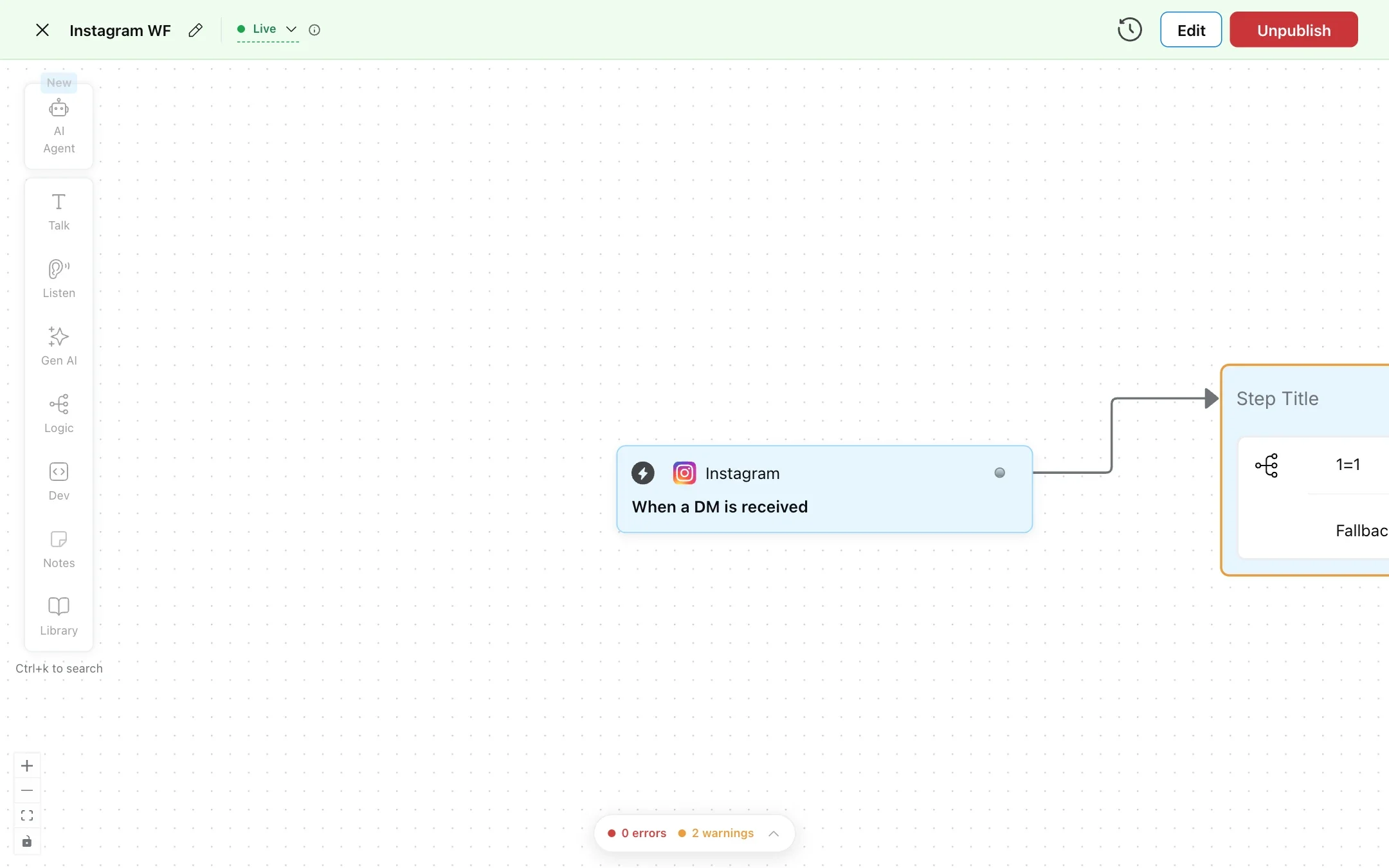
Every workflow starts with a **trigger** and continues with blocks from the builder's toolbar. Blocks are grouped by what they do:
| Group | Blocks | Use it to |
| --- | --- | --- |
| [Triggers](https://www.robylon.ai/docs/product/triggers) | Channel, API, Webhook and Internal triggers | Start the workflow when something happens. |
| [Talk](https://www.robylon.ai/docs/product/talk) | Message, Image, Ticket Reply, Send Email | Send something to the customer or add a note to a ticket. |
| [Listen](https://www.robylon.ai/docs/product/listen) | Buttons, Capture, Upload Img, Carousel, Card, Form, List | Ask the customer something and wait for the reply. |
| [AI Agent](https://www.robylon.ai/docs/product/ai-agent-blocks) | AI Agent, Voice AI Agent | Hand the conversation to an AI agent, or place a call with a voice agent. |
| [Gen AI](https://www.robylon.ai/docs/product/gen-ai) | Generate, Extract | Write text or pull out details with AI. |
| [Logic](https://www.robylon.ai/docs/product/logic) | Conditions, Component, Set Variables, Delay, Verification | Branch, store values, wait, or reuse another workflow. |
| [Dev](https://www.robylon.ai/docs/product/dev-notes) | API, Integration, MCP | Call your systems or use a connected app. |
| Notes | Add Note | Leave a note on the canvas for your team. |
The toolbar also has an **AI Agent** button for adding a **Voice AI Agent** block. Press **Ctrl+K** to search for a block.
 ## Create a workflow
Go to [**Settings → Workflows & AI Agents → Workflows**](https://app.robylon.ai/settings/automations) and click **Create Workflow**.
Enter a **Name** (shown to the end user) and a **Description**. Make the description accurate and detailed: Robylon searches descriptions to find the right workflow for what a customer asks.
Choose or create a **Category** to keep your workflows organized. Each workflow works best in one category. Leave **Builder Version** on **V2**.
Click **Create**, then click the start block and **Add a Trigger**. See [triggers](https://www.robylon.ai/docs/product/triggers).
Add blocks from the toolbar and connect them. Each block has exits that you connect to the next block. For example, an API call has a **Success** and a **Failure** exit.
Check the errors and warnings counter at the bottom of the canvas, then click **Publish**. You cannot publish while there are errors; warnings do not block publishing.
A live workflow shows **Edit** and **Unpublish** at the top of the builder: click **Edit** to change it, then publish again to replace the live version. See [version history](https://www.robylon.ai/docs/product/version-history).
## Actions on block exits
Buttons, conditions and several other blocks can run **actions** on their exits, as well as moving to the next block. Some actions end the workflow; others let it continue.
| Action | What it does |
| --- | --- |
| Populate Entity or Variable | Sets a variable or entity to a value. |
| Update property | Changes a ticket or conversation [property](https://www.robylon.ai/docs/inbox/properties). |
| Update User Info | Updates the customer's details. |
| Update status | Changes the ticket or conversation status, for example to Closed. |
| Add tag | Adds a tag to the conversation. |
| Capture Attachments | Saves the files the customer sent. |
| Create Ticket | Creates a ticket from the conversation. |
| Go to URL | Opens a link for the customer. |
| Open Share Menu | Opens the share menu. Ends the workflow. |
| Go to an Intent | Jumps to the workflow for an intent. Ends this workflow. |
| Go to a Block | Jumps to another block in this workflow. |
| Handover to human | Hands the conversation to your team, for example by routing through [queues](https://www.robylon.ai/docs/human-users/queues). Ends the workflow. |
| Handover to AI | Hands the conversation to the AI agent you pick: the triage agent, a sub-agent or a single agent. Ends the workflow. |
| End Automation | Ends the workflow. |
## Workflow statuses
* **Live:** published and running on its triggers. The live version is read-only.
* **Draft:** not yet published, or a working copy with unpublished changes.
* **Paused:** unpublished. Its triggers no longer start it.
Filter the Workflows list by **Trigger** (a channel, **Internal Trigger**, **API Trigger** or **No Trigger**) or **Status**. Each row shows the workflow's triggers, status, number of runs, and when it was last updated.
Every publish is saved in [version history](https://www.robylon.ai/docs/product/version-history), and every run is logged in [Runs](https://www.robylon.ai/docs/product/runs).
## Keep workflows reliable
* **Handle failure exits.** Connect every **Failure** exit of an API to something, for example a handover to your team, so customers are never left waiting.
* **Log with internal notes.** On ticket workflows, an internal note shows your team what the workflow found without emailing the customer. See [Talk blocks](https://www.robylon.ai/docs/product/talk).
* **Name your blocks.** Give each block a clear title so the canvas and the run logs are easy to read.
## Create a workflow
Go to [**Settings → Workflows & AI Agents → Workflows**](https://app.robylon.ai/settings/automations) and click **Create Workflow**.
Enter a **Name** (shown to the end user) and a **Description**. Make the description accurate and detailed: Robylon searches descriptions to find the right workflow for what a customer asks.
Choose or create a **Category** to keep your workflows organized. Each workflow works best in one category. Leave **Builder Version** on **V2**.
Click **Create**, then click the start block and **Add a Trigger**. See [triggers](https://www.robylon.ai/docs/product/triggers).
Add blocks from the toolbar and connect them. Each block has exits that you connect to the next block. For example, an API call has a **Success** and a **Failure** exit.
Check the errors and warnings counter at the bottom of the canvas, then click **Publish**. You cannot publish while there are errors; warnings do not block publishing.
A live workflow shows **Edit** and **Unpublish** at the top of the builder: click **Edit** to change it, then publish again to replace the live version. See [version history](https://www.robylon.ai/docs/product/version-history).
## Actions on block exits
Buttons, conditions and several other blocks can run **actions** on their exits, as well as moving to the next block. Some actions end the workflow; others let it continue.
| Action | What it does |
| --- | --- |
| Populate Entity or Variable | Sets a variable or entity to a value. |
| Update property | Changes a ticket or conversation [property](https://www.robylon.ai/docs/inbox/properties). |
| Update User Info | Updates the customer's details. |
| Update status | Changes the ticket or conversation status, for example to Closed. |
| Add tag | Adds a tag to the conversation. |
| Capture Attachments | Saves the files the customer sent. |
| Create Ticket | Creates a ticket from the conversation. |
| Go to URL | Opens a link for the customer. |
| Open Share Menu | Opens the share menu. Ends the workflow. |
| Go to an Intent | Jumps to the workflow for an intent. Ends this workflow. |
| Go to a Block | Jumps to another block in this workflow. |
| Handover to human | Hands the conversation to your team, for example by routing through [queues](https://www.robylon.ai/docs/human-users/queues). Ends the workflow. |
| Handover to AI | Hands the conversation to the AI agent you pick: the triage agent, a sub-agent or a single agent. Ends the workflow. |
| End Automation | Ends the workflow. |
## Workflow statuses
* **Live:** published and running on its triggers. The live version is read-only.
* **Draft:** not yet published, or a working copy with unpublished changes.
* **Paused:** unpublished. Its triggers no longer start it.
Filter the Workflows list by **Trigger** (a channel, **Internal Trigger**, **API Trigger** or **No Trigger**) or **Status**. Each row shows the workflow's triggers, status, number of runs, and when it was last updated.
Every publish is saved in [version history](https://www.robylon.ai/docs/product/version-history), and every run is logged in [Runs](https://www.robylon.ai/docs/product/runs).
## Keep workflows reliable
* **Handle failure exits.** Connect every **Failure** exit of an API to something, for example a handover to your team, so customers are never left waiting.
* **Log with internal notes.** On ticket workflows, an internal note shows your team what the workflow found without emailing the customer. See [Talk blocks](https://www.robylon.ai/docs/product/talk).
* **Name your blocks.** Give each block a clear title so the canvas and the run logs are easy to read.