# Manage Knowledge Base Sources, Tags and Limits in Robylon
Find, edit, filter and delete sources, understand each status, control where a source is used with Available For and KB tags, and stay within your plan's limits.
> Source: https://www.robylon.ai/docs/knowledgebase/managingkb
> Section: Knowledge Base
Once you have added sources, the **Source** page is where you keep them in order: check what is live, see how often each source is used, edit content, choose where it can be used, and remove what is out of date. A tidy Knowledge Base gives more accurate answers, because the agent cannot tell an old policy from a new one if both are live.
Open it from [**Knowledge → Source**](https://app.robylon.ai/content/knowledge-base).
## The source list
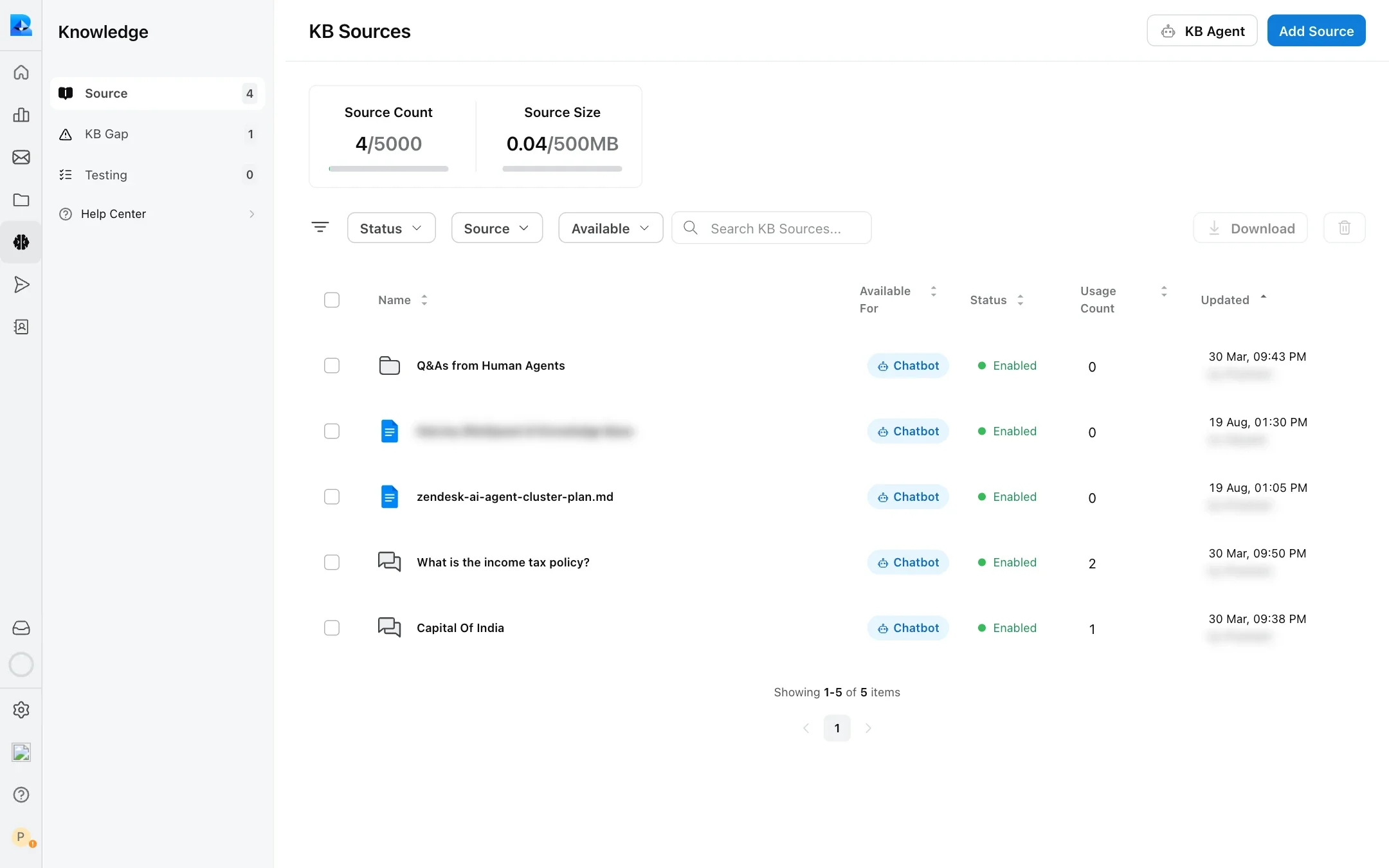
Every source you added, one row each. Synced websites and the Q&As generated from human agents appear as folders you can open.
| Column | What it shows |
| --- | --- |
| **Name** | The file name, Q&A title or website URL. Websites show how many pages they contain. |
| **Available For** | Where the source can be used, set by its **Conversations**, **Suggested Solutions** and **Copilot** switches. See [Available For](#control-where-a-source-is-used). |
| **Status** | Whether the source is live. See [statuses](#source-statuses). |
| **Usage Count** | How many times the AI has used this source in an answer. |
| **Updated** | When it last changed, and who changed it. |
Above the list you can filter by **Status**, **Source** type (**Q&A**, **File**, **Google Drive** or **Webpage**) and **Available** channel, search by name, and select rows to **Download** or delete them.
Sort by **Usage Count** now and then. Sources with high usage deserve the most care, and sources that are never used may be out of date or duplicated by a better one.
## Source statuses
| Status | Meaning | Used in answers? |
| --- | --- | --- |
| **Processing** | Robylon is reading and indexing the source. | Not yet |
| **Enabled** | Live. | Yes |
| **Refreshing** | A scheduled or manual refresh is running. The previous version stays live meanwhile. | Yes |
| **Pending Review** | A refresh found pages that disappeared or could not be read, or generated Q&As are waiting for approval. See [Keeping sources up to date](https://www.robylon.ai/docs/knowledgebase/refresh). | Pages that were already live stay live. Q&As waiting for approval are not used. |
| **Failed** | The source could not be read. | No |
If a source fails, check that the file opens, that a web page is public, and add it again.
To stop the AI using a source in customer answers, turn off **Conversations** under [Available For](#control-where-a-source-is-used), or delete the source.
## Edit a source
Click it in the list. A panel opens with the source and its details: size, number of characters, usage count, when it was added and by whom, and for Google Drive documents and web pages its refresh frequency. Make your changes and click **Save & Update**.
What you can change depends on the source type:
* **Q&As:** the title, questions, answer, custom instructions, reference link, **Available For** and KB tags. Saved changes are indexed again straight away.
* **Files, Google Drive documents and web pages:** **Available For**, the reference link and KB tags. The content is shown under **Preview** and **Chunks** but cannot be edited here. To change it, update the original and upload it again or [refresh](https://www.robylon.ai/docs/knowledgebase/refresh) it.
For a synced website, open the folder and click a page to see or edit that page. Click **Folder Settings** to change settings for the whole website: its [refresh schedule](https://www.robylon.ai/docs/knowledgebase/refresh) and its KB tags.
 ## Control where a source is used
Use **Available For**, on every Add Source form and in each source's panel. It has three switches:
| Switch | Where the source is used |
| --- | --- |
| **Conversations** | AI answers to customers on every channel. On by default. |
| **Suggested Solutions** | KB articles suggested to teammates in the inbox. |
| **Copilot** | Answers for your teammates only, through [AI Copilot](https://www.robylon.ai/docs/inbox/ai-copilot). |
How the switches work:
* **A source with Conversations off is not used in AI answers to customers.**
* **A source with Copilot off is not used by Copilot**, as long as Conversations is on.
* **If you turn both Conversations and Copilot off**, the source is saved with Conversations on.
* **Copilot** requires an Advanced or Expert agent seat. Without one, the switch is locked.
Turn **Conversations** off and **Copilot** on for internal content, for example escalation rules, that your team should see but customers should not.
## KB tags
KB tags limit a source to the conversations it applies to, for example customers in one region. Sources without tags are always used. See [KB tags](https://www.robylon.ai/docs/knowledgebase/kb-tags).
## Storage limits
Each plan limits the number of sources and their total size. The **Source Count** and **Source Size** cards at the top of the **Source** page show your usage against your workspace's limits.
* **Source Count:** every Q&A counts as one source, and so does every page of a synced website, every file and every Google Drive document.
* **Source Size:** the amount of text Robylon extracted from your sources, not the size of the original files. A large PDF with little text uses little space.
Every Add Source form shows how much the new content will add. If it would take you over either limit, the source is not saved. A refresh that would go over the size limit fails and the source keeps its previous content.
If you are close to a limit, delete duplicate and outdated sources, and merge many small documents into fewer, well-structured ones. To change your limits, contact your account manager or support@robylon.ai.
## Keep the Knowledge Base healthy
* **Delete sources that are out of date.** A live old policy competes with the new one.
* **Refresh websites and Drive files** on a schedule. See [Keeping sources up to date](https://www.robylon.ai/docs/knowledgebase/refresh).
* **Review KB gaps weekly** and fill them with Q&As. See [KB gap](https://www.robylon.ai/docs/improve/kb-gap).
* **Re-run your bulk test** after big changes. See [Bulk testing](https://www.robylon.ai/docs/knowledgebase/bulk-testing).