# Set SLA Targets for Human Handovers in Robylon
Create SLA policies that time first response, next response and resolution after a handover to humans, warn agents before a breach and act when one happens.
> Source: https://www.robylon.ai/docs/inbox/slas
> Section: Inbox and tickets
An SLA (service level agreement) is a response-time promise, such as "a human replies within 15 minutes of a handover". Robylon starts an SLA clock when a conversation is handed from the AI to your team, warns people as the deadline nears, takes action if it is missed, and tracks how often you meet it.
Open it from **Settings → Inbox & Productivity → SLAs**.
## How do I create an SLA?
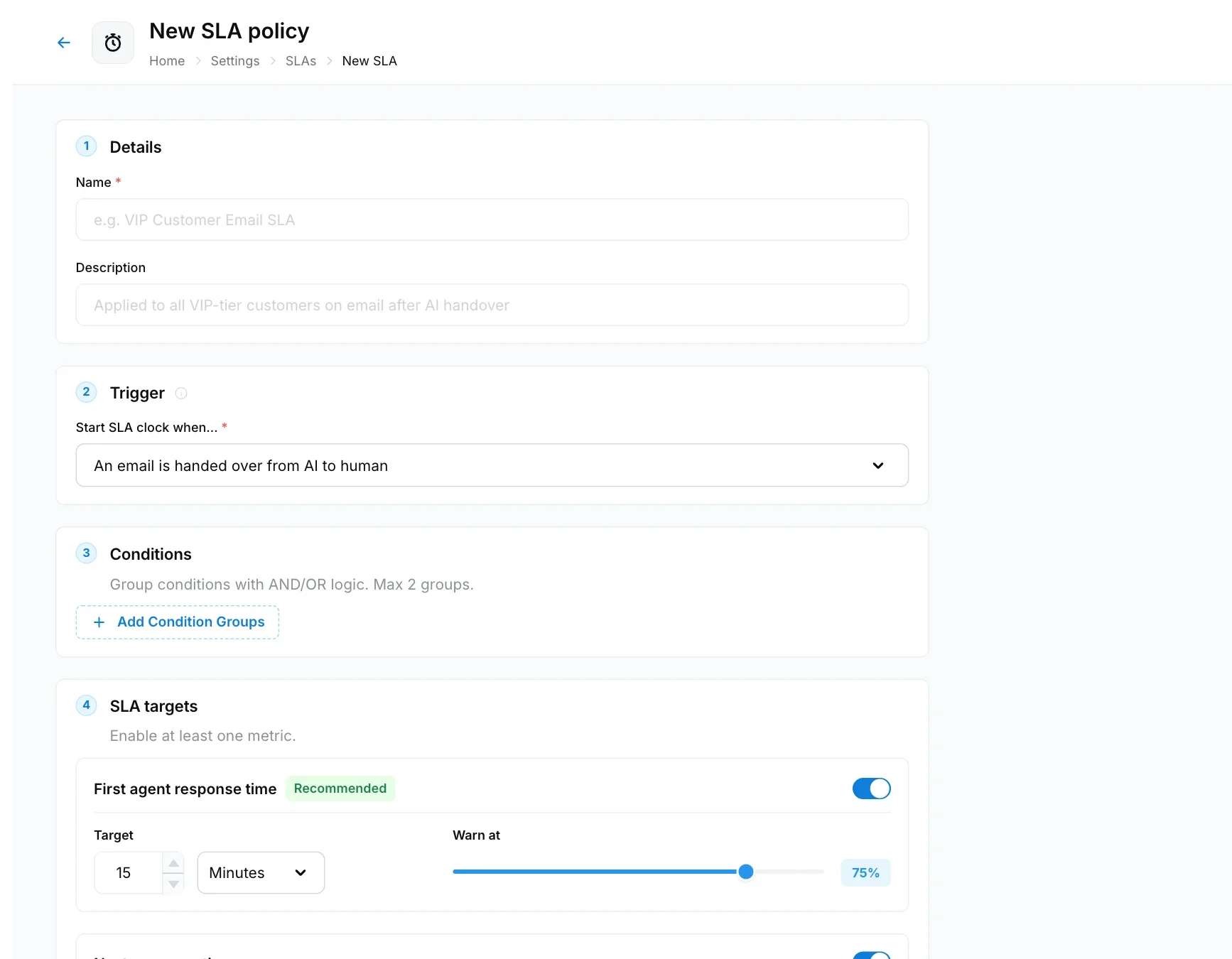
Click **Create SLA** and work through the five sections of the form, then click **Create SLA**.
Enter a **Name** (unique in your workspace) and an optional **Description**.
Under **Start SLA clock when…**, choose the handover that starts the clock:
* **An email is handed over from AI to human**
* **A chat is handed over from AI to human**
Optionally limit the SLA to some conversations with **Add Condition Groups**, for example only high-priority tickets or one property value. You can add up to 2 condition groups joined by AND or OR. With no conditions, the SLA applies to every handover of that type.
Turn on at least one metric and set its **Target** and **Warn at** percentage. See [the metrics](#which-metrics-can-an-sla-track).
Choose what happens when the SLA is at risk and when it is breached. See [the actions](#what-happens-when-an-sla-is-at-risk-or-breached).
 ## Which metrics can an SLA track?
| Metric | Clock runs from | Stops when |
| --- | --- | --- |
| First agent response time (recommended) | The handover | An agent sends the first reply |
| Next response time | Each new customer message | An agent replies |
| Resolution time | The handover | The conversation is closed |
Set each target in **Minutes**, **Hours** or **Business days**. One business day counts as 8 hours.
**Warn at** sets when the SLA counts as at risk, as a percentage of the target. The default is 75%, so with a 20-minute target the warning fires at 15 minutes.
SLA clocks pause outside business hours. The next response clock starts as soon as the customer replies. The resolution clock stops when the conversation is **Resolved** or **Closed**.
## What happens when an SLA is at risk or breached?
You can add actions for two moments: **When SLA is at risk (warning threshold reached)** and **When SLA is breached**. A new SLA starts with **Notify assigned agent** as the warning action and **Notify all supervisors** as the breach action. Add more with **+ Add warning action** and **+ Add breach action**.
| Action | What it does |
| --- | --- |
| Notify assigned agent | Alerts the agent working on the conversation. |
| Notify all supervisors | Alerts every Supervisor. |
| Notify all admins and super admins | Alerts every Admin and Super Admin. |
| Reassign to group | Moves the conversation to another group. |
| Update property | Sets a property, for example marks it "Escalated". |
| Send reply | Sends a message to the customer. |
Notify actions can be delivered **In-app**, by **Email**, or both.
## How do I see if we are meeting our SLAs?
The SLAs list shows each policy's compliance: the percentage of timed conversations that met the target. Each metric on each conversation is recorded as met or breached, and breaches are counted against the agent who held the conversation.
Set a policy to **Active** or **Inactive** to turn it on or off.
## Which metrics can an SLA track?
| Metric | Clock runs from | Stops when |
| --- | --- | --- |
| First agent response time (recommended) | The handover | An agent sends the first reply |
| Next response time | Each new customer message | An agent replies |
| Resolution time | The handover | The conversation is closed |
Set each target in **Minutes**, **Hours** or **Business days**. One business day counts as 8 hours.
**Warn at** sets when the SLA counts as at risk, as a percentage of the target. The default is 75%, so with a 20-minute target the warning fires at 15 minutes.
SLA clocks pause outside business hours. The next response clock starts as soon as the customer replies. The resolution clock stops when the conversation is **Resolved** or **Closed**.
## What happens when an SLA is at risk or breached?
You can add actions for two moments: **When SLA is at risk (warning threshold reached)** and **When SLA is breached**. A new SLA starts with **Notify assigned agent** as the warning action and **Notify all supervisors** as the breach action. Add more with **+ Add warning action** and **+ Add breach action**.
| Action | What it does |
| --- | --- |
| Notify assigned agent | Alerts the agent working on the conversation. |
| Notify all supervisors | Alerts every Supervisor. |
| Notify all admins and super admins | Alerts every Admin and Super Admin. |
| Reassign to group | Moves the conversation to another group. |
| Update property | Sets a property, for example marks it "Escalated". |
| Send reply | Sends a message to the customer. |
Notify actions can be delivered **In-app**, by **Email**, or both.
## How do I see if we are meeting our SLAs?
The SLAs list shows each policy's compliance: the percentage of timed conversations that met the target. Each metric on each conversation is recorded as met or breached, and breaches are counted against the agent who held the conversation.
Set a policy to **Active** or **Inactive** to turn it on or off.