# Ticket Properties: Custom Fields for Conversations
Create custom properties to capture structured details on conversations and tickets, make them required at the right moment, and let AI fill them in automatically.
> Source: https://www.robylon.ai/docs/inbox/properties
> Section: Inbox and tickets
Properties are custom fields on a conversation or ticket, such as order number, reason for contact or refund amount. Agents fill them in from the inbox, AI can fill them from the conversation, and you can use them in queues, SLAs, filters, automations and reports.
Open it from **Settings → Data & Developer → Properties**.
## Which property types can I create?
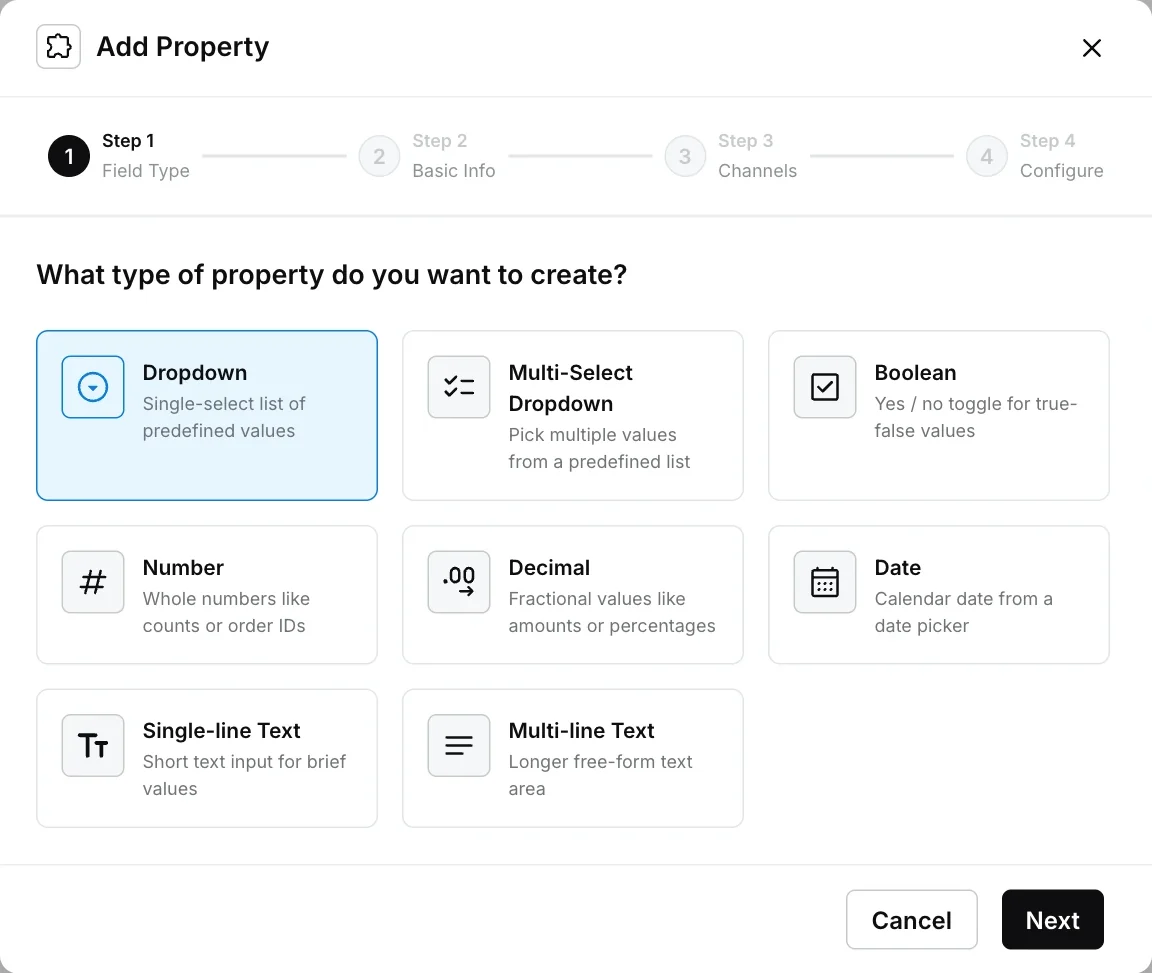
| Type | Use it for |
| --- | --- |
| Dropdown | One value from a fixed list, for example "Reason: Refund, Exchange, Delivery". |
| Multi-Select Dropdown | Several values from a fixed list. |
| Boolean | Yes or no, for example "Escalated". |
| Number | Whole numbers, such as counts or order IDs. |
| Decimal | Amounts or percentages. |
| Date | A calendar date. |
| Single-line Text | Short text. |
| Multi-line Text | Longer free text. |
## How do I create a property?
Click **Add a Property** and work through the four steps: field type, basic info, channels, configure.
Choose the property type and click **Next**.
Enter a **Property Name** and a **Description** (both required). The **Internal Key**, used in APIs and integrations, is generated from the name. Write the description clearly: if you let AI fill the property, it reads the description to know what to extract.
Choose the channels the property applies to, and for each channel whether it is required:
* **To create:** must be filled when the ticket is created.
* **Status change:** must be filled before any status change.
* **To close:** must be filled before the ticket is set to Closed. Setting it to Resolved does not require it.
For dropdowns, add **All Possible Values** and optionally **Make Default** on one. Turn on **AI Auto-fill** to let AI set the value from the conversation. Click **Save**.
A property marked **To close** always appears in the inbox details panel for that channel, whatever the [inbox panel](https://www.robylon.ai/docs/inbox/inbox-panel) layout says.
 ## How does AI Auto-fill work?
With **AI Auto-fill** on, Robylon reads the conversation and sets the property value automatically, using the property's description as its instruction. For example, a "Order number" property described as "The 7-digit order number the customer mentions, digits only" gets filled from the customer's message.
AI Auto-fill fills empty properties when a conversation is closed. It does not overwrite a value an agent has already set.
## What are system properties?
Properties marked **System** are created by Robylon, for example **Needs First Agent Reply** and the assigned agent's name, email and ID. You can use them in conditions and reports, but you cannot delete them. The status property is one of them: its default statuses stay, and you can add your own status values to it.
The **Source** column shows where a property comes from: **Manual** for properties created in Robylon, or the helpdesk it was imported from.
## Where are properties used?
* In the inbox details panel, where agents view and edit them.
* In inbox [filters](https://www.robylon.ai/docs/inbox/unified-inbox#how-do-i-filter-conversations) (**Properties & Entities**).
* In [queue](https://www.robylon.ai/docs/human-users/queues) and [SLA](https://www.robylon.ai/docs/inbox/slas) conditions.
* In [macros](https://www.robylon.ai/docs/inbox/macros) and [simple automations](https://www.robylon.ai/docs/simple-automations), which can update them.
* In workflows, as variables. Each property has a variable key, shown in curly braces in the list.
## How does AI Auto-fill work?
With **AI Auto-fill** on, Robylon reads the conversation and sets the property value automatically, using the property's description as its instruction. For example, a "Order number" property described as "The 7-digit order number the customer mentions, digits only" gets filled from the customer's message.
AI Auto-fill fills empty properties when a conversation is closed. It does not overwrite a value an agent has already set.
## What are system properties?
Properties marked **System** are created by Robylon, for example **Needs First Agent Reply** and the assigned agent's name, email and ID. You can use them in conditions and reports, but you cannot delete them. The status property is one of them: its default statuses stay, and you can add your own status values to it.
The **Source** column shows where a property comes from: **Manual** for properties created in Robylon, or the helpdesk it was imported from.
## Where are properties used?
* In the inbox details panel, where agents view and edit them.
* In inbox [filters](https://www.robylon.ai/docs/inbox/unified-inbox#how-do-i-filter-conversations) (**Properties & Entities**).
* In [queue](https://www.robylon.ai/docs/human-users/queues) and [SLA](https://www.robylon.ai/docs/inbox/slas) conditions.
* In [macros](https://www.robylon.ai/docs/inbox/macros) and [simple automations](https://www.robylon.ai/docs/simple-automations), which can update them.
* In workflows, as variables. Each property has a variable key, shown in curly braces in the list.