# Intents: Classify Why Customers Contact You in Robylon
Set up intents in up to three levels, let AI fill them in on conversations, and use them to filter and route conversations. Intents are separate from tags.
> Source: https://www.robylon.ai/docs/inbox/intents
> Section: Data and tools
An intent describes why a customer contacted you, such as "Order tracking" or "Refund request". Intents are organised in up to three levels, AI can fill them in on each conversation, agents can set or correct them, and they can be different for each channel.
Set them up in **Settings → Data & Developer → Intents**.
## How do intents work?
Each intent sits in a hierarchy of up to three levels, for example a category, a subcategory and a specific issue:
* Level 1: **Orders**
* Level 2: **Returns**
* Level 3: **Return pickup delayed**
When a conversation is classified, its intents show in the **Intent Classification** section of the inbox panel. Robylon uses them to:
* **Filter and route:** filter the inbox and route conversations with [queues](https://www.robylon.ai/docs/human-users/queues).
* **Report:** group conversations in your [reports](https://www.robylon.ai/docs/analytics/reports).
## How do intents get onto a conversation?
* **In a workflow:** the **Capture** block's **Identify Intent from Reply** option identifies the intent of the customer's reply and tags it onto the conversation. See [Listen blocks](https://www.robylon.ai/docs/product/listen).
* **By AI at closure:** when a conversation closes without an intent, Robylon's AI can classify it into your intent hierarchy. See [how to control labelling](#how-do-i-control-how-conversations-are-labelled).
* **By hand:** an agent sets or corrects the intent in the **Intent Classification** section of the conversation, or a [macro](https://www.robylon.ai/docs/inbox/macros) runs **Add Intent**.
An intent that is already on the conversation is never overwritten. If a workflow identified it, or an agent set it, the AI auto-fill at closure does not run.
## How are intents different from tags?
[Tags](https://www.robylon.ai/docs/inbox/tags) are single-level labels anyone can add. Intents can have up to three levels, can be filled by AI, and can differ per channel.
| | Tags | Intents |
| --- | --- | --- |
| Structure | Single level (L1): a flat list of labels, added freely | Multi-level: up to three levels, for example Orders → Returns → Return pickup delayed |
| Set up in | **Settings → Inbox & Productivity → Tags** | **Settings → Data & Developer → Intents** |
| Added by | Agents by hand, or automatically by workflows and automations | AI, which classifies the conversation's intent, or agents. Intents can be different for each channel. |
| In the inbox panel | **Tags** section | **Intent Classification** section |
| Inbox filter | **General → Tags** | **Intent Classification → Tags** |
## How do I create an intent?
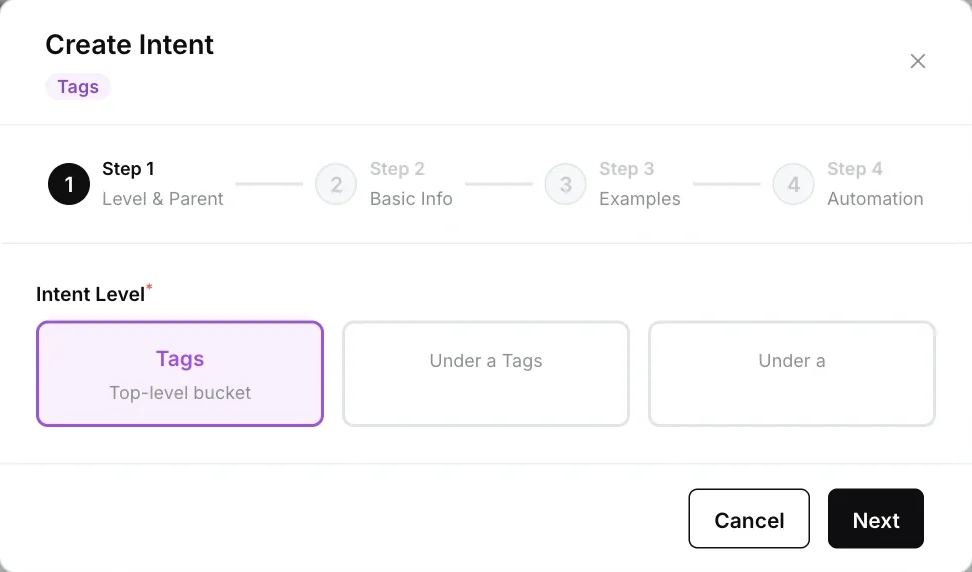
The **Create Intent** dialog has four steps.
Go to **Settings → Data & Developer → Intents** and click **+ Create Intent**. Choose whether it is a top-level intent or sits under an existing one.
Enter a **Name** and a **Description**, and choose the channels it applies to. Optionally **Attach Variables**: these are used to match or filter intents when a ticket or chat is labelled.
Add **Utterances**: things customers say when they have this intent, such as "Where is my parcel?" and "My order hasn't arrived". Add **Positive Examples** that belong to the intent and **Negative Examples** that look similar but do not, each with a short reason.
 The description matters most. Write it as a rule: "The customer wants to cancel an order they have already placed. Not for returns after delivery."
## Can I import intents in bulk?
Yes. Click **Import CSV** on the Intents page and download the sample file (`intents_sample.csv`) from the dialog to start from. The file uses the columns **L1 Name**, **L2 Name**, **L3 Name**, **Description**, **Channels**, **Status** and **Utterances**.
* Put one intent on each row. A level 2 intent repeats its level 1 name, and a level 3 intent repeats both.
* Separate several channels or utterances in one cell with commas, for example `where is my order,track my package`.
* Set **Channels** and **Status** (for example `Active`) on the level 1 row. Child intents inherit them.
## How do I control how conversations are labelled?
Click **Intent Settings** on the Intents page.
* **Level Names:** rename the three levels, for example to Category, Subcategory and Issue.
* **Classification Settings:** one configuration per group of chat channels. For each, set:
* **Multiple intent identifications per conversation**, and **Max intent groups** when it is on.
* **Bot-closed conversations:** turn on **AI auto-fill at conversation closure** and choose the model.
* **Human-closed conversations:** make intent classification mandatory for agents, and turn on AI auto-fill.
* **Intent Instructions:** extra guidance for the AI when it labels conversations.
Use **+ Add Configuration** to set up different rules for different channels. Ticket channels are labelled through the **Identify Intent from Reply** option of the Capture block in your ticket workflow instead.
The description matters most. Write it as a rule: "The customer wants to cancel an order they have already placed. Not for returns after delivery."
## Can I import intents in bulk?
Yes. Click **Import CSV** on the Intents page and download the sample file (`intents_sample.csv`) from the dialog to start from. The file uses the columns **L1 Name**, **L2 Name**, **L3 Name**, **Description**, **Channels**, **Status** and **Utterances**.
* Put one intent on each row. A level 2 intent repeats its level 1 name, and a level 3 intent repeats both.
* Separate several channels or utterances in one cell with commas, for example `where is my order,track my package`.
* Set **Channels** and **Status** (for example `Active`) on the level 1 row. Child intents inherit them.
## How do I control how conversations are labelled?
Click **Intent Settings** on the Intents page.
* **Level Names:** rename the three levels, for example to Category, Subcategory and Issue.
* **Classification Settings:** one configuration per group of chat channels. For each, set:
* **Multiple intent identifications per conversation**, and **Max intent groups** when it is on.
* **Bot-closed conversations:** turn on **AI auto-fill at conversation closure** and choose the model.
* **Human-closed conversations:** make intent classification mandatory for agents, and turn on AI auto-fill.
* **Intent Instructions:** extra guidance for the AI when it labels conversations.
Use **+ Add Configuration** to set up different rules for different channels. Ticket channels are labelled through the **Identify Intent from Reply** option of the Capture block in your ticket workflow instead.