# Canned Responses: Saved Replies for Agents in Robylon
Create saved replies with a short command, and insert them into any conversation by typing / and the command in the inbox composer.
> Source: https://www.robylon.ai/docs/inbox/canned-responses
> Section: Inbox and tickets
Canned responses are saved replies for questions your team answers again and again. An agent types `/` and a short command in the composer, and the full reply is inserted, ready to edit and send. They keep answers fast and consistent.
Open it from **Settings → Inbox & Productivity → Canned Responses**.
## How do I create a canned response?
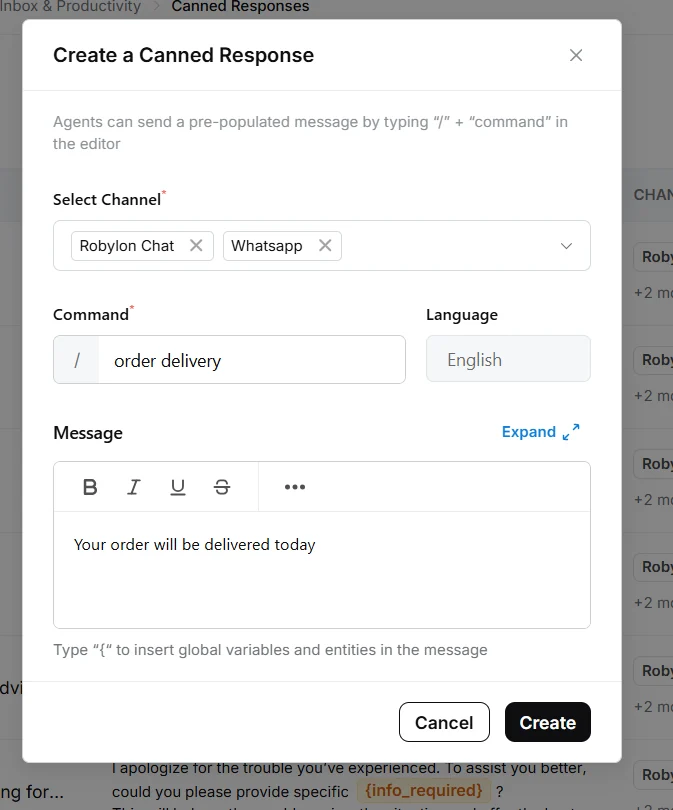
Click **Add Canned Response**, choose the channels, set a command and write the message, then click **Create**.
Go to **Settings → Inbox & Productivity → Canned Responses** and click **Add Canned Response**.
In **Select Channel**, choose the channels where agents can use it, for example Robylon Chat and WhatsApp.
Enter the **Command** agents will type after `/`, for example `order delivery`. Keep it short and easy to guess.
Write the reply under **Message**. You can format it, and type `{` to insert variables and entities, such as the customer's name, that are filled in when the message is sent. Click **Expand** for a larger editor.
Click **Create**. Agents can use it straight away.
 ## How do agents use a canned response?
In the composer, type `/` followed by the command, for example `/order delivery`, and pick the response from the list. The message is inserted into the composer, where the agent can edit it before clicking **Send**.
Only canned responses set up for the conversation's channel are offered.
## Can canned responses be used in other languages?
Yes. When translation is on for your workspace, each agent sees canned responses in their own **Conversation language**, and the reply is translated into the customer's language when it is sent.
* **Search and insert in your language:** when an agent types `/`, commands and messages are shown in their conversation language, if the canned response has a version in that language. Otherwise the original is shown.
* **Send in the customer's language:** with **Send messages in Human Agent's language** on, Robylon detects the customer's language and translates the reply into it before sending. If both languages are the same, it is sent as written.
For example, an agent whose conversation language is Hindi searches and edits the Hindi version of a canned response, and a customer writing in English receives it in English.
Agents set their conversation language from their avatar at the bottom of the left sidebar, then **Account Settings → Preferences → Conversation language**. See [Languages](https://www.robylon.ai/docs/languages#what-does-send-messages-in-human-agents-language-do).
## How do I keep canned responses tidy?
The Canned Responses list shows each response's command, message, channels and who last updated it. Filter it by **Channels** to review one channel at a time.
Use a naming pattern for commands, such as `refund_policy`, `refund_status` and `refund_delay`, so agents can find the right one by typing the first word.
Review canned responses whenever a policy changes. An out-of-date saved reply spreads the wrong answer quickly. If **Grammar Checks** is on in **Settings → AI Intelligence → AI Behavior**, canned responses are checked for grammar too.
## Canned responses or macros?
A canned response inserts one message the agent can edit. A [macro](https://www.robylon.ai/docs/inbox/macros) runs several actions at once, such as sending a message, updating a property and closing the conversation.
## How do agents use a canned response?
In the composer, type `/` followed by the command, for example `/order delivery`, and pick the response from the list. The message is inserted into the composer, where the agent can edit it before clicking **Send**.
Only canned responses set up for the conversation's channel are offered.
## Can canned responses be used in other languages?
Yes. When translation is on for your workspace, each agent sees canned responses in their own **Conversation language**, and the reply is translated into the customer's language when it is sent.
* **Search and insert in your language:** when an agent types `/`, commands and messages are shown in their conversation language, if the canned response has a version in that language. Otherwise the original is shown.
* **Send in the customer's language:** with **Send messages in Human Agent's language** on, Robylon detects the customer's language and translates the reply into it before sending. If both languages are the same, it is sent as written.
For example, an agent whose conversation language is Hindi searches and edits the Hindi version of a canned response, and a customer writing in English receives it in English.
Agents set their conversation language from their avatar at the bottom of the left sidebar, then **Account Settings → Preferences → Conversation language**. See [Languages](https://www.robylon.ai/docs/languages#what-does-send-messages-in-human-agents-language-do).
## How do I keep canned responses tidy?
The Canned Responses list shows each response's command, message, channels and who last updated it. Filter it by **Channels** to review one channel at a time.
Use a naming pattern for commands, such as `refund_policy`, `refund_status` and `refund_delay`, so agents can find the right one by typing the first word.
Review canned responses whenever a policy changes. An out-of-date saved reply spreads the wrong answer quickly. If **Grammar Checks** is on in **Settings → AI Intelligence → AI Behavior**, canned responses are checked for grammar too.
## Canned responses or macros?
A canned response inserts one message the agent can edit. A [macro](https://www.robylon.ai/docs/inbox/macros) runs several actions at once, such as sending a message, updating a property and closing the conversation.