# Find and Fix Knowledge Base Gaps in Robylon
See the questions your AI agent could not answer from the Knowledge Base, grouped by topic and ranked by how often they are asked, and close each gap with a Q&A.
> Source: https://www.robylon.ai/docs/improve/kb-gap
> Section: Improve your AI agent
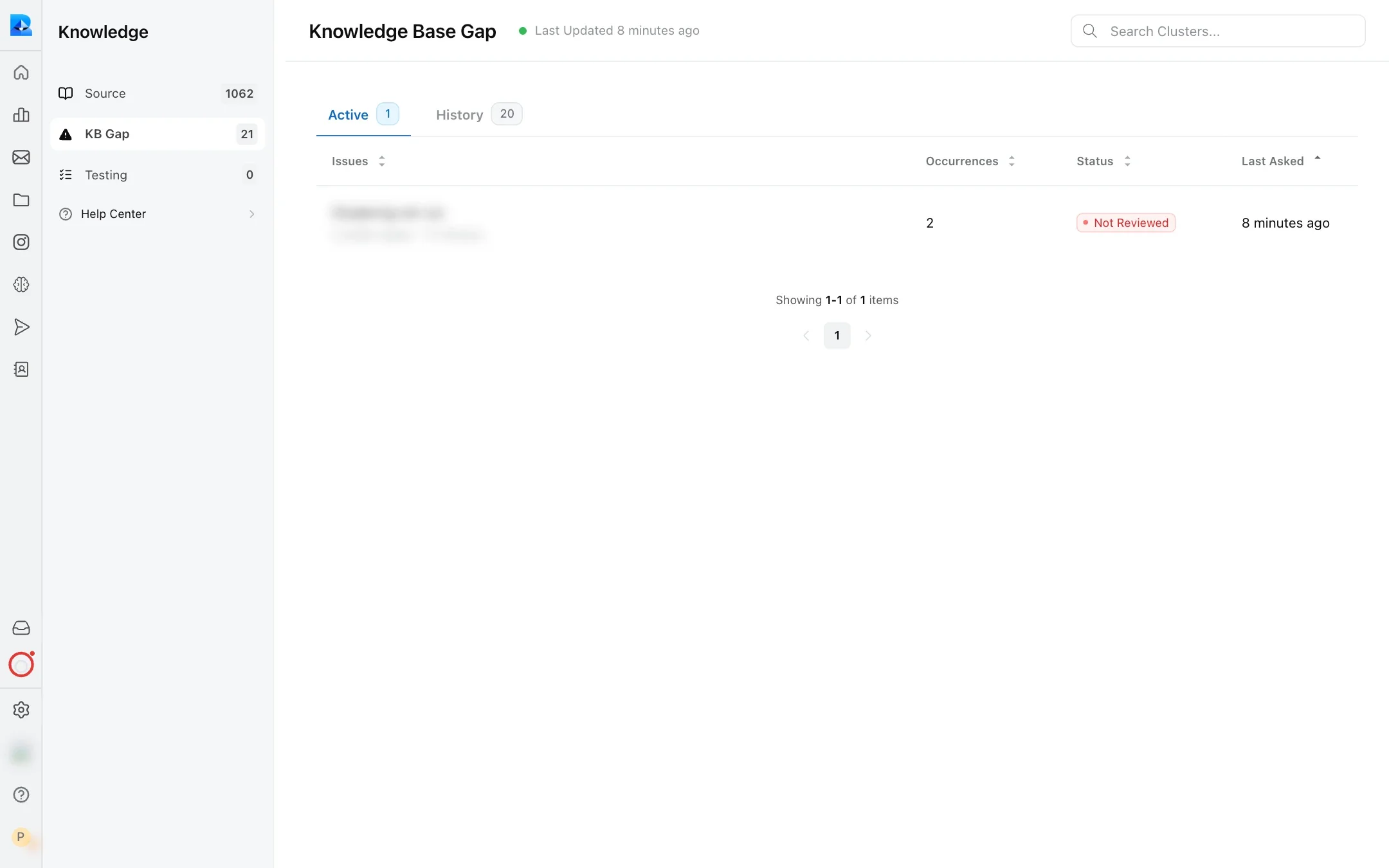
**KB Gap** lists the questions your AI agent could not answer from your Knowledge Base. Robylon groups similar questions into topics and counts how often each is asked, so you can fix the gaps that affect the most customers first.
Open it from **Knowledge → KB Gap**.
## What counts as a knowledge gap?
A question is added to KB Gap when, in a live conversation:
* **No relevant content was found.** The search returned nothing useful and the agent's confidence in its answer was below 50 out of 100.
* **Content was found but did not answer the question.** The agent judged the passages it retrieved as not helpful.
* **A customer gave a thumbs-down** to an answer that came from the Knowledge Base.
Test conversations are not included, and the same question asked again within 5 minutes is only counted once.
## How is the KB Gap page organised?
In three levels: topics, questions, and the conversations where each question was asked.
| Level | What it is | Where you see it |
| --- | --- | --- |
| **Issue (topic)** | A named group of related questions, such as "Ask about international shipping". | The main KB Gap list |
| **Question** | One unanswered question. Near-identical questions are merged into one. | Inside an issue |
| **Occurrence** | One conversation where the question was asked. | Inside a question |
The main list shows each issue's **Occurrences** (how many times its questions were asked), **Status** and **Last Asked**, with a count of its active questions and its questions in history. The **Active** tab shows issues with questions still waiting for you. **History** shows everything, including gaps already resolved or discarded.
Topics are updated automatically: new questions are grouped every 6 hours, and all topics are rebuilt every 3 days. **Last Updated** at the top shows when the list was last refreshed.
 ## How is KB Gap different from KB Analytics?
**KB Gap** lists each unanswered topic as an issue you can work through, add a Q&A for, or discard. **KB Analytics**, under **Analytics & Insights**, shows the questions your Knowledge Base could not answer, broken down by channel. Its snapshot is updated every 3 days, so it shows trends rather than today's conversations.
## How do I close a gap?
Open the issue, open a question, read a conversation where it came up, then click **Add to Q&A** and write the answer.
Go to **Knowledge → KB Gap**. Start with the issue with the most **Occurrences**.
Click the issue to see its questions, then click a question. You see its status, when it was last asked, and how many times.
Select an occurrence to open that conversation. Check what the customer was trying to do and, if a teammate took over, how they answered.
Click **Add to Q&A**, write a general question and a complete answer, and save. The question is marked as resolved, and the agent can answer it from now on.
The customer's question is filled in for you in the Q&A form.
If the question is not something your agent should answer, such as spam or small talk, click **Discard Issue** instead.
If several questions in one issue have the same answer, add one Q&A and put the other questions in as alternate questions. One well-written Q&A closes the whole topic.
## What do the statuses mean?
For a single question:
| Status | Meaning |
| --- | --- |
| **Active** | Waiting for you. |
| **Actioned** (shown as **Resolved on** a date) | Someone added a Q&A for it. |
| **Discarded** | Someone decided it does not need an answer. |
| **Archived** | Nobody acted on it for 30 days, so it was archived automatically. |
For an issue, the status summarises its questions, for example **Active** while none has been reviewed and **Partially Reviewed** once some have. In **History**, filter by **Resolved**, **Discarded** or **Archived**.
## How often should I check KB Gap?
Weekly works for most teams. Robylon emails a weekly summary of new gaps to Admins and Super Admins every Monday at 05:00 UTC, so that is a good time to review.
Gaps that nobody acts on are archived after 30 days. If the question is still being asked, it comes back as a new gap.
## What else helps close gaps?
* **Check the source is not just hidden.** If you do have content on the topic, it may be tagged for other conversations or turned off for **Conversations**. See [Managing your Knowledge Base](https://www.robylon.ai/docs/knowledgebase/managingkb).
* **Fix wrong answers too.** KB Gap catches missing answers. For answers that were given but wrong, use [Click to Improve](https://www.robylon.ai/docs/knowledgebase/click-to-improve) in [transcripts](https://www.robylon.ai/docs/improve/transcripts).
* **Retest.** Add the gap questions to your [bulk test](https://www.robylon.ai/docs/knowledgebase/bulk-testing) file.
## How is KB Gap different from KB Analytics?
**KB Gap** lists each unanswered topic as an issue you can work through, add a Q&A for, or discard. **KB Analytics**, under **Analytics & Insights**, shows the questions your Knowledge Base could not answer, broken down by channel. Its snapshot is updated every 3 days, so it shows trends rather than today's conversations.
## How do I close a gap?
Open the issue, open a question, read a conversation where it came up, then click **Add to Q&A** and write the answer.
Go to **Knowledge → KB Gap**. Start with the issue with the most **Occurrences**.
Click the issue to see its questions, then click a question. You see its status, when it was last asked, and how many times.
Select an occurrence to open that conversation. Check what the customer was trying to do and, if a teammate took over, how they answered.
Click **Add to Q&A**, write a general question and a complete answer, and save. The question is marked as resolved, and the agent can answer it from now on.
The customer's question is filled in for you in the Q&A form.
If the question is not something your agent should answer, such as spam or small talk, click **Discard Issue** instead.
If several questions in one issue have the same answer, add one Q&A and put the other questions in as alternate questions. One well-written Q&A closes the whole topic.
## What do the statuses mean?
For a single question:
| Status | Meaning |
| --- | --- |
| **Active** | Waiting for you. |
| **Actioned** (shown as **Resolved on** a date) | Someone added a Q&A for it. |
| **Discarded** | Someone decided it does not need an answer. |
| **Archived** | Nobody acted on it for 30 days, so it was archived automatically. |
For an issue, the status summarises its questions, for example **Active** while none has been reviewed and **Partially Reviewed** once some have. In **History**, filter by **Resolved**, **Discarded** or **Archived**.
## How often should I check KB Gap?
Weekly works for most teams. Robylon emails a weekly summary of new gaps to Admins and Super Admins every Monday at 05:00 UTC, so that is a good time to review.
Gaps that nobody acts on are archived after 30 days. If the question is still being asked, it comes back as a new gap.
## What else helps close gaps?
* **Check the source is not just hidden.** If you do have content on the topic, it may be tagged for other conversations or turned off for **Conversations**. See [Managing your Knowledge Base](https://www.robylon.ai/docs/knowledgebase/managingkb).
* **Fix wrong answers too.** KB Gap catches missing answers. For answers that were given but wrong, use [Click to Improve](https://www.robylon.ai/docs/knowledgebase/click-to-improve) in [transcripts](https://www.robylon.ai/docs/improve/transcripts).
* **Retest.** Add the gap questions to your [bulk test](https://www.robylon.ai/docs/knowledgebase/bulk-testing) file.