# Route Conversations with Queues in Robylon
Create queues that sort handed-over conversations into the right group by property or intent, and set priorities so urgent work is assigned first.
> Source: https://www.robylon.ai/docs/human-users/queues
> Section: Team
A queue sorts conversations that need a human into a group, and decides how urgently they are assigned. For example, a "Refund requests" queue can catch every conversation whose intent is a refund, send it to the refunds group, and put it ahead of general questions.
Open it from **Settings → Team → Queues**.
## How do order and priority differ?
**Order decides which queue a conversation enters. Priority decides which queue's work is assigned first.**
* **Order:** Robylon checks your queues from top to bottom and puts the conversation in the first queue whose conditions match. Drag queues in the list to change the order.
* **Priority:** a number from 1 to 10000, where 1 is the highest. If a group receives work from more than one queue, work from the higher-priority queue is assigned first. Each queue needs its own priority number.
Within one queue, the oldest conversation is assigned first.
## How do I create a queue?
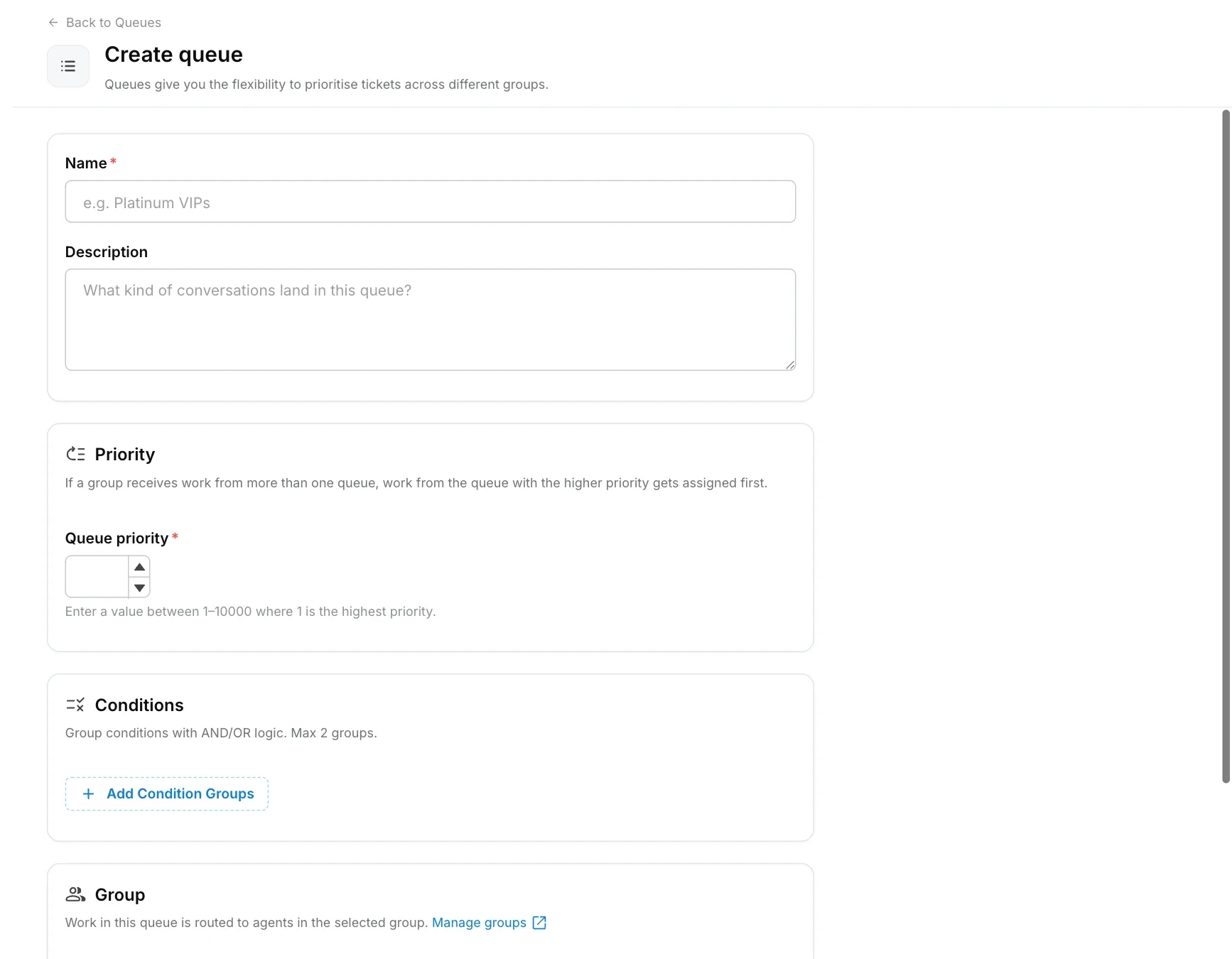
Click **Create queue**, give it a name and priority, add conditions, choose the group, and save.
Go to **Settings → Team → Queues** and click **Create queue**. Enter a **Name** (required) and an optional **Description** (up to 500 characters).
Enter a **Queue priority** between 1 and 10000. 1 is the highest priority.
Under **Conditions**, add the rules a conversation must meet to enter this queue. You can build up to 2 condition groups and join them with AND or OR logic. A queue with no conditions catches every conversation that reaches it in the order.
Under **Group**, select the group whose agents will work this queue. Manage groups in [Groups](https://www.robylon.ai/docs/human-users/groups).
Click **Save**, then drag the queue to the right position in the list.
## What can a queue condition check?
A condition can check:
* **Properties:** any ticket [property](https://www.robylon.ai/docs/inbox/properties), for example "Order type equals Return" or "Order value greater than 5000". The operators depend on the property type (text, dropdown, number, date and so on).
* **Intent:** whether the conversation's classified intents contain, or do not contain, one or more intents you pick. See [intents](https://www.robylon.ai/docs/inbox/intents).
 ## What is the default queue?
The **Default queue** is a catch-all at the bottom of the list. A conversation that matches no other queue lands there and goes to its own group, falling back to the **General** group. You cannot delete it or give it conditions.
## Can a workflow send a conversation straight to a queue or group?
Yes. When a workflow or AI agent hands a conversation to humans, it can route it automatically through your queues, send it to a specific queue, or send it to a specific group. You choose this in the handover step of the [workflow](https://www.robylon.ai/docs/product/product). A conversation sent straight to a group uses that group's own default queue.
## What is the default queue?
The **Default queue** is a catch-all at the bottom of the list. A conversation that matches no other queue lands there and goes to its own group, falling back to the **General** group. You cannot delete it or give it conditions.
## Can a workflow send a conversation straight to a queue or group?
Yes. When a workflow or AI agent hands a conversation to humans, it can route it automatically through your queues, send it to a specific queue, or send it to a specific group. You choose this in the handover step of the [workflow](https://www.robylon.ai/docs/product/product). A conversation sent straight to a group uses that group's own default queue.