# Set Business Hours, Holidays and Out-of-Office Rules
Create working hours schedules and holiday calendars for your team, and decide what happens to chats and emails that arrive when nobody is working.
> Source: https://www.robylon.ai/docs/human-users/business-hours
> Section: Team
Business hours tell Robylon when your human agents are working. Outside them, Robylon follows your out-of-office settings: it can hold conversations until the team is back, still assign them, and send customers a message saying when to expect a reply.
Open it from **Settings → Team → Business Hours**. It has two tabs: **Working Hours** and **Holidays**.
## How do I add working hours?
Click **Add Working Hours**, set the schedule's days and hours, then choose the out-of-office behaviour and save.
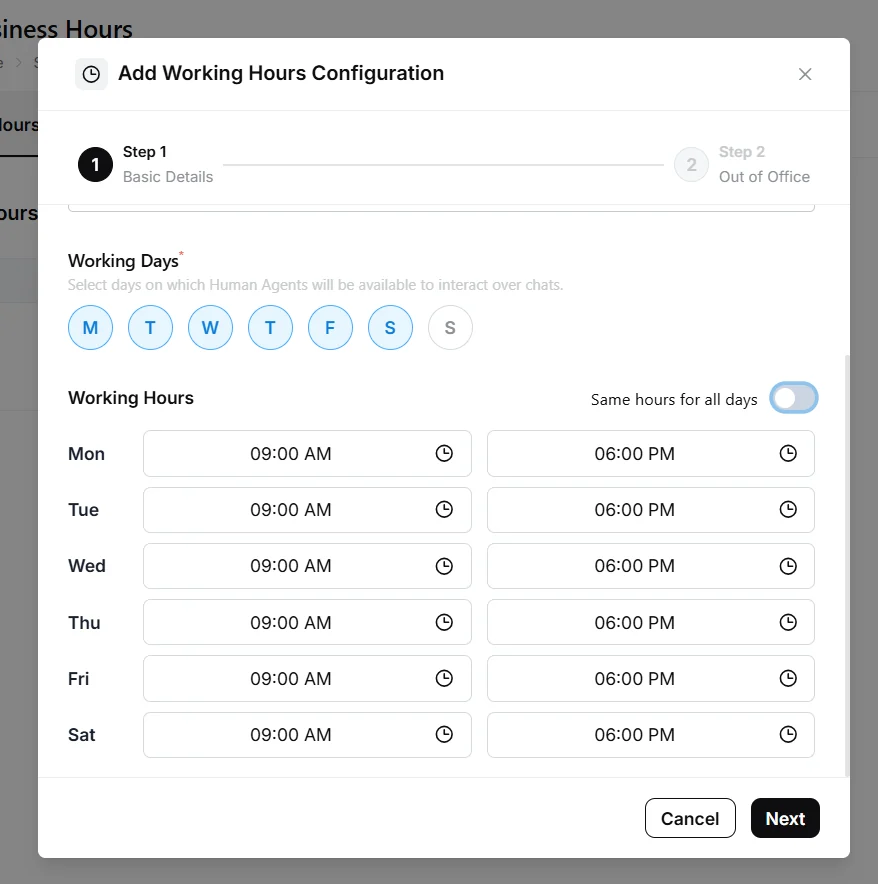
On the **Working Hours** tab, click **Add Working Hours**. Enter a **Schedule Name** and choose the **Timezone** the hours are in.
Under **Working Days**, select the days your agents are available. For each day, set a start and end time under **Working Hours**, or turn on **Same hours for all days** to use one time range for every day. Click **Next**.
 Choose what happens outside these hours. See [the out-of-office options](#what-happens-outside-working-hours) below.
Click **Save**. Then pick this schedule in a group's **Working hours** field in [Groups](https://www.robylon.ai/docs/human-users/groups).
If you select no working days, Robylon treats the whole week as working time (24x7).
## What happens outside working hours?
On the second step, **Out of Office**, you decide whether work is still assigned and what customers are told.
| Setting | What it does |
| --- | --- |
| Chat Assignment | Assign chats to human agents during out-of-office hours. |
| Email Assignment | Assign email tickets to human agents during out-of-office hours. |
| Human Verification Assignment | Assign [verification tasks](https://www.robylon.ai/docs/product/human-verification) to human agents during out-of-office hours. |
| Agent unavailability outside working hours (Chat Messages) | A message sent to customers who reach a human outside working hours. |
| Auto-reply outside working hours (Email Messages) | An automatic reply to emails received outside working hours. |
When an assignment setting is off, conversations that arrive out of hours wait unassigned. They are assigned automatically when working hours start and agents come online.
If waiting chats are not assigned automatically once working hours start and your agents are online, contact [support@robylon.ai](mailto:support@robylon.ai).
Say when you will be back: "Our team is offline right now. We reply between 9 AM and 7 PM, Monday to Saturday, and will pick this up first thing."
## How do I add holidays?
Open the **Holidays** tab and click **Add Holiday Calendar**. Enter a **Calendar Name**, then add each holiday with a **Holiday Name** and **Holiday Date** using **+ Add a Holiday**, and save. On holidays, conversations follow the out-of-office settings of the group's working hours.
Pick the calendar in a group's **Holiday calendar** field so it applies to that group.
## Can different teams have different hours?
Yes. Create one schedule and one holiday calendar per team, then assign them in each group. For example, a chat team that works 9 AM to 9 PM every day and an email team that works 10 AM to 6 PM on weekdays each get their own schedule. The list on the Working Hours tab shows each schedule's days, hours and the channels and groups using it.
Choose what happens outside these hours. See [the out-of-office options](#what-happens-outside-working-hours) below.
Click **Save**. Then pick this schedule in a group's **Working hours** field in [Groups](https://www.robylon.ai/docs/human-users/groups).
If you select no working days, Robylon treats the whole week as working time (24x7).
## What happens outside working hours?
On the second step, **Out of Office**, you decide whether work is still assigned and what customers are told.
| Setting | What it does |
| --- | --- |
| Chat Assignment | Assign chats to human agents during out-of-office hours. |
| Email Assignment | Assign email tickets to human agents during out-of-office hours. |
| Human Verification Assignment | Assign [verification tasks](https://www.robylon.ai/docs/product/human-verification) to human agents during out-of-office hours. |
| Agent unavailability outside working hours (Chat Messages) | A message sent to customers who reach a human outside working hours. |
| Auto-reply outside working hours (Email Messages) | An automatic reply to emails received outside working hours. |
When an assignment setting is off, conversations that arrive out of hours wait unassigned. They are assigned automatically when working hours start and agents come online.
If waiting chats are not assigned automatically once working hours start and your agents are online, contact [support@robylon.ai](mailto:support@robylon.ai).
Say when you will be back: "Our team is offline right now. We reply between 9 AM and 7 PM, Monday to Saturday, and will pick this up first thing."
## How do I add holidays?
Open the **Holidays** tab and click **Add Holiday Calendar**. Enter a **Calendar Name**, then add each holiday with a **Holiday Name** and **Holiday Date** using **+ Add a Holiday**, and save. On holidays, conversations follow the out-of-office settings of the group's working hours.
Pick the calendar in a group's **Holiday calendar** field so it applies to that group.
## Can different teams have different hours?
Yes. Create one schedule and one holiday calendar per team, then assign them in each group. For example, a chat team that works 9 AM to 9 PM every day and an email team that works 10 AM to 6 PM on weekdays each get their own schedule. The list on the Working Hours tab shows each schedule's days, hours and the channels and groups using it.