# Agent Statuses: Online, Offline and Custom Statuses
Understand the default agent statuses, create custom ones like Break or Training, and change your own status so you only receive work when you are ready.
> Source: https://www.robylon.ai/docs/human-users/agent-status
> Section: Team
An agent status tells Robylon whether an agent can take new work right now. Only agents in a status that is **Available to Reply** get chats, tickets and calls assigned to them, so statuses are how agents step away without conversations piling up on them.
Manage statuses from [**Settings → Team → Agent Statuses**](https://app.robylon.ai/settings/agent-statuses). Agents change their own status from their profile menu.
## Default statuses
Every workspace has three statuses that you cannot edit or delete:
| Status | Available to reply | Meaning |
| --- | --- | --- |
| Online | Yes | Working and ready to take conversations. |
| Offline | No | Logged out or not working. |
| Unavailable | No | Logged in, but not taking new conversations. |
## Add a custom status
Click **+ Add New Status**, give it a name and icon, choose whether agents in it can be assigned work, and save.
Go to [**Settings → Team → Agent Statuses**](https://app.robylon.ai/settings/agent-statuses) and click **+ Add New Status**.
Under **Status Name & Icon**, enter a clear name, for example **Break**, and choose an icon.
Turn **Available to Reply** on if agents in this status should still be assigned chats, tickets and calls. Leave it off for breaks and meetings.
Click **Save**. The status appears in every agent's status picker.
You can edit or delete custom statuses from the pencil and bin icons on their row.
## Change your own status
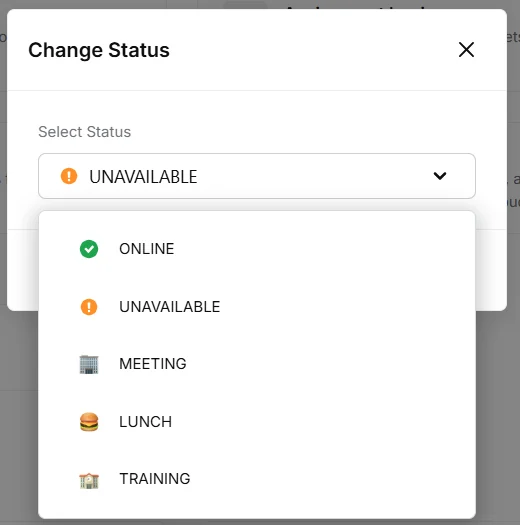
Click your avatar at the bottom of the left sidebar, then click **Change** next to your current status, and pick a new one.