# Connect Your Email Domain or Mailbox to Robylon
Connect your support email in two steps: enter your domain, then sign in with Google Workspace or Microsoft 365, or verify the domain with DNS records if you use another provider.
> Source: https://www.robylon.ai/docs/email-domains
> Section: Email
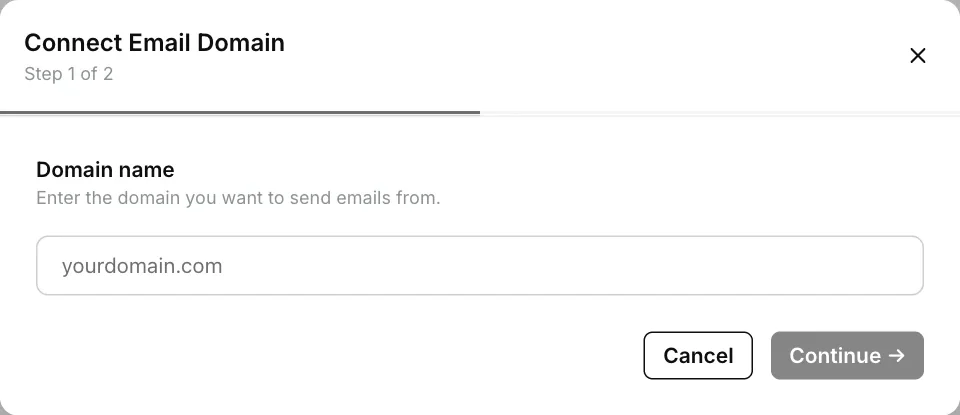
Open **Settings → Channels → Email** and click **Connect Domain**. In step 1 you enter your **Domain name**, and in step 2 you choose how you manage email for that domain:
* **Google Workspace** (Gmail, Google Workspace): you sign in with Google. OAuth.
* **Microsoft 365** (Outlook, Exchange Online): you sign in with Microsoft. OAuth.
* **Other provider** (Zoho, Fastmail, self-hosted, etc.): you verify the domain by adding DNS records.
Once a domain is connected, it appears on the **Email Domains** page. **Add Address (OAuth)** does not connect a new domain: it adds another mailbox to a domain that is already connected.
This page covers connecting. For what the Email Domains page shows, how emails become tickets, sender names and signatures, see [Email](https://www.robylon.ai/docs/channels/email).
 ## Which option should I choose in step 2?
Choose the option that matches where your domain's email is hosted. The dialog puts it this way: "Google/Microsoft connect via OAuth. Others use DNS verification."
| | Google Workspace or Microsoft 365 | Other provider |
| --- | --- | --- |
| Use it when | Your support mailbox is on Google Workspace or Microsoft 365 | Your email is hosted anywhere else, such as Zoho, Fastmail or your own server |
| How it connects | You sign in to the mailbox and approve access | You add DNS records at your domain provider |
| Button in step 2 | **Connect with Google** or **Connect with Microsoft** | **Set up DNS** |
| Adding more addresses | **Add Address (OAuth)**, signing in to each mailbox | **Add Address (DNS)**, typing any address on the verified domain |
| Who needs to help | Whoever can sign in to the mailbox | Whoever manages your DNS |
## How do I connect a Google Workspace or Microsoft 365 mailbox?
Click **Connect Domain**, enter your domain, choose your provider and sign in with the support mailbox.
Go to **Settings → Channels → Email** and click **Connect Domain**. The **Connect Email Domain** dialog opens at **Step 1 of 2**.
Under **Domain name**, enter the domain you want to send emails from, for example `yourcompany.com`, and click **Continue**. Enter the domain only, with letters, numbers, dots and hyphens.
Step 2 asks how you manage email for your domain. Select **Google Workspace** or **Microsoft 365**, then click **Connect with Google** or **Connect with Microsoft**.
A new window opens and the dialog shows "Waiting for authorization." Sign in with the mailbox you want to connect and approve the permissions Robylon asks for.
The dialog closes and the domain appears on the **Email Domains** page with the address under it.
The mailbox you sign in with must be on the domain you entered. If it is not, Robylon shows **Domain mismatch**: "The signed-in account's domain doesn't match the domain you're connecting." If the sign-in fails or does not finish in time, the dialog returns to step 2 so you can try again.
## How do I add another mailbox to a domain I already connected?
Click **Add Address (OAuth)** on the domain's card and sign in with the other mailbox. You do not go through **Connect Domain** again.
On the **Email Domains** page, click **Add Address (OAuth)** on the domain's card. The **Add Email Account** dialog asks you to sign in with another account on that domain to authorize it for sending.
Select **Google Workspace** or **Microsoft 365** and click **Sign In**. Sign in with the new mailbox in the window that opens.
**Add Address (OAuth)** appears on domains connected with Google Workspace or Microsoft 365.
## How do I connect a domain with another email provider?
Enter your domain, choose **Other provider**, add the DNS records Robylon gives you, and add addresses once the domain is verified.
Click **Connect Domain**, enter your domain under **Domain name** and click **Continue**.
In step 2, select **Other provider** and click **Set up DNS**. The domain appears on the **Email Domains** page with the status **DNS Pending**.
On the domain's card, click **Domain Settings** and open **DNS Records**. Add every record listed there at the company that manages your domain's DNS (for example GoDaddy, Cloudflare or Route 53). Copy each value with the copy button next to it.
Robylon checks the records automatically. To check again straight away, click **Verify Now**. Once the records are found, the domain shows as verified.
On the domain's card, click **Add Address (DNS)**. In **Add Email Address**, enter the part before the @ in **Email Id** (for example `support`), optionally a **Display Name** to show as the sender name, and click **Add Address**. You can add any address on the verified domain: a domain verified as `yourcompany.com` can send as `support@yourcompany.com`, but not as `support@othercompany.com`.
**Add Address (DNS)** appears only once the domain's DNS records are verified.
## What DNS records do I need to add?
You add three DKIM records, one SPF record and one DMARC record. Copy the exact values from **Domain Settings → DNS Records**, because the DKIM values are unique to your domain.
| Purpose | Type | Host | Value |
| --- | --- | --- | --- |
| DKIM (3 records) | CNAME | `._domainkey` | `.dkim.amazonses.com` |
| SPF | TXT | `@` | `v=spf1 include:amazonses.com ~all` |
| DMARC | TXT | `_dmarc` | `v=DMARC1; p=none;` |
A domain can only have one SPF record. If yours already has one, do not add a second. Add `include:amazonses.com` to the existing record instead, before the final `~all` or `-all`.
If your domain already has a DMARC record, keep it. You do not need to replace it with the one above.
## Why is my domain not verified yet?
The most common reasons are that the DNS records have not been published yet, or that a record was copied with an extra character or the domain repeated in its name.
* **Wait and check again.** Most DNS providers publish changes within minutes, but it can take up to 48 hours. Click **Verify Now** in **Domain Settings → DNS Records** to check again.
* **Check the record names.** Some DNS providers add your domain to the name automatically. If you type `abc._domainkey.yourcompany.com` into one of them, the record becomes `abc._domainkey.yourcompany.com.yourcompany.com` and will not match. Enter only the part shown in Robylon.
* **Check for a second SPF record.** Two SPF records on one domain make both invalid.
You cannot add email addresses with **Add Address (DNS)** until the domain is verified.
## What do I do if a mailbox stops syncing?
Click **Reconnect** on the address's row and sign in again. When an address connected with Google Workspace or Microsoft 365 stops syncing, for example when its sign-in expires or access to the account is revoked, its status changes to **Failing** or **Disconnected** and the domain's card shows how many addresses are failing. Teammates can also get an **Email address failing** notification, set in their notification preferences.
## How do I send notification emails from my own domain?
The **Email domains** tab connects a domain so that Robylon can send notification emails from your own email addresses instead of a Robylon address. As the tab puts it: "Authenticate your domain to send notifications from your own email addresses." It does not receive customer email.
Open it from **Settings → General → Brand Info → Email domains**. Click **Connect Domain** to start the same two-step **Connect Email Domain** flow used for the support mailbox: enter your **Domain name**, then choose **Google Workspace**, **Microsoft 365** or **Other provider**. The steps and DNS records are the same as on this page.
Once connected, the domain's card shows:
* **Status:** **OAUTH** for a domain connected by signing in, **DNS PENDING** while its DNS records are being checked, and **DNS VERIFIED** once they are found.
* **Senders:** the addresses you can send from. Use the card to add another sender, set the default sender or remove one.
* **DNS Records:** the records to add at your DNS provider, with **Verify** to check them again.
* **Unlock domain-wide sending:** on a domain connected with Google Workspace or Microsoft 365, **Add DNS records** lets you send from any address on the domain without connecting each one.
* **Disconnect:** removes the domain. You need to connect it again to send emails from it.
You can connect one domain on this tab. To use a different domain, disconnect the current one first.
Addresses connected here can be picked in the **From** list when a workflow sends an email, under **CUSTOM DOMAIN**. See [Talk blocks](https://www.robylon.ai/docs/product/talk).
## How is the notification domain different from the support mailbox?
They are two separate connections with separate lists. A domain connected in one does not appear in the other.
| | **Brand Info → Email domains** | **Settings → Channels → Email** |
| --- | --- | --- |
| What it is for | Sending notification emails from your own address | Your support mailbox: customer emails arrive as tickets and replies go out from it |
| Receives customer email | No | Yes |
| Domains | One | More than one |
To connect the support mailbox your customers write to, use **Settings → Channels → Email**, as described above. See also [Email](https://www.robylon.ai/docs/channels/email).
## Which option should I choose in step 2?
Choose the option that matches where your domain's email is hosted. The dialog puts it this way: "Google/Microsoft connect via OAuth. Others use DNS verification."
| | Google Workspace or Microsoft 365 | Other provider |
| --- | --- | --- |
| Use it when | Your support mailbox is on Google Workspace or Microsoft 365 | Your email is hosted anywhere else, such as Zoho, Fastmail or your own server |
| How it connects | You sign in to the mailbox and approve access | You add DNS records at your domain provider |
| Button in step 2 | **Connect with Google** or **Connect with Microsoft** | **Set up DNS** |
| Adding more addresses | **Add Address (OAuth)**, signing in to each mailbox | **Add Address (DNS)**, typing any address on the verified domain |
| Who needs to help | Whoever can sign in to the mailbox | Whoever manages your DNS |
## How do I connect a Google Workspace or Microsoft 365 mailbox?
Click **Connect Domain**, enter your domain, choose your provider and sign in with the support mailbox.
Go to **Settings → Channels → Email** and click **Connect Domain**. The **Connect Email Domain** dialog opens at **Step 1 of 2**.
Under **Domain name**, enter the domain you want to send emails from, for example `yourcompany.com`, and click **Continue**. Enter the domain only, with letters, numbers, dots and hyphens.
Step 2 asks how you manage email for your domain. Select **Google Workspace** or **Microsoft 365**, then click **Connect with Google** or **Connect with Microsoft**.
A new window opens and the dialog shows "Waiting for authorization." Sign in with the mailbox you want to connect and approve the permissions Robylon asks for.
The dialog closes and the domain appears on the **Email Domains** page with the address under it.
The mailbox you sign in with must be on the domain you entered. If it is not, Robylon shows **Domain mismatch**: "The signed-in account's domain doesn't match the domain you're connecting." If the sign-in fails or does not finish in time, the dialog returns to step 2 so you can try again.
## How do I add another mailbox to a domain I already connected?
Click **Add Address (OAuth)** on the domain's card and sign in with the other mailbox. You do not go through **Connect Domain** again.
On the **Email Domains** page, click **Add Address (OAuth)** on the domain's card. The **Add Email Account** dialog asks you to sign in with another account on that domain to authorize it for sending.
Select **Google Workspace** or **Microsoft 365** and click **Sign In**. Sign in with the new mailbox in the window that opens.
**Add Address (OAuth)** appears on domains connected with Google Workspace or Microsoft 365.
## How do I connect a domain with another email provider?
Enter your domain, choose **Other provider**, add the DNS records Robylon gives you, and add addresses once the domain is verified.
Click **Connect Domain**, enter your domain under **Domain name** and click **Continue**.
In step 2, select **Other provider** and click **Set up DNS**. The domain appears on the **Email Domains** page with the status **DNS Pending**.
On the domain's card, click **Domain Settings** and open **DNS Records**. Add every record listed there at the company that manages your domain's DNS (for example GoDaddy, Cloudflare or Route 53). Copy each value with the copy button next to it.
Robylon checks the records automatically. To check again straight away, click **Verify Now**. Once the records are found, the domain shows as verified.
On the domain's card, click **Add Address (DNS)**. In **Add Email Address**, enter the part before the @ in **Email Id** (for example `support`), optionally a **Display Name** to show as the sender name, and click **Add Address**. You can add any address on the verified domain: a domain verified as `yourcompany.com` can send as `support@yourcompany.com`, but not as `support@othercompany.com`.
**Add Address (DNS)** appears only once the domain's DNS records are verified.
## What DNS records do I need to add?
You add three DKIM records, one SPF record and one DMARC record. Copy the exact values from **Domain Settings → DNS Records**, because the DKIM values are unique to your domain.
| Purpose | Type | Host | Value |
| --- | --- | --- | --- |
| DKIM (3 records) | CNAME | `._domainkey` | `.dkim.amazonses.com` |
| SPF | TXT | `@` | `v=spf1 include:amazonses.com ~all` |
| DMARC | TXT | `_dmarc` | `v=DMARC1; p=none;` |
A domain can only have one SPF record. If yours already has one, do not add a second. Add `include:amazonses.com` to the existing record instead, before the final `~all` or `-all`.
If your domain already has a DMARC record, keep it. You do not need to replace it with the one above.
## Why is my domain not verified yet?
The most common reasons are that the DNS records have not been published yet, or that a record was copied with an extra character or the domain repeated in its name.
* **Wait and check again.** Most DNS providers publish changes within minutes, but it can take up to 48 hours. Click **Verify Now** in **Domain Settings → DNS Records** to check again.
* **Check the record names.** Some DNS providers add your domain to the name automatically. If you type `abc._domainkey.yourcompany.com` into one of them, the record becomes `abc._domainkey.yourcompany.com.yourcompany.com` and will not match. Enter only the part shown in Robylon.
* **Check for a second SPF record.** Two SPF records on one domain make both invalid.
You cannot add email addresses with **Add Address (DNS)** until the domain is verified.
## What do I do if a mailbox stops syncing?
Click **Reconnect** on the address's row and sign in again. When an address connected with Google Workspace or Microsoft 365 stops syncing, for example when its sign-in expires or access to the account is revoked, its status changes to **Failing** or **Disconnected** and the domain's card shows how many addresses are failing. Teammates can also get an **Email address failing** notification, set in their notification preferences.
## How do I send notification emails from my own domain?
The **Email domains** tab connects a domain so that Robylon can send notification emails from your own email addresses instead of a Robylon address. As the tab puts it: "Authenticate your domain to send notifications from your own email addresses." It does not receive customer email.
Open it from **Settings → General → Brand Info → Email domains**. Click **Connect Domain** to start the same two-step **Connect Email Domain** flow used for the support mailbox: enter your **Domain name**, then choose **Google Workspace**, **Microsoft 365** or **Other provider**. The steps and DNS records are the same as on this page.
Once connected, the domain's card shows:
* **Status:** **OAUTH** for a domain connected by signing in, **DNS PENDING** while its DNS records are being checked, and **DNS VERIFIED** once they are found.
* **Senders:** the addresses you can send from. Use the card to add another sender, set the default sender or remove one.
* **DNS Records:** the records to add at your DNS provider, with **Verify** to check them again.
* **Unlock domain-wide sending:** on a domain connected with Google Workspace or Microsoft 365, **Add DNS records** lets you send from any address on the domain without connecting each one.
* **Disconnect:** removes the domain. You need to connect it again to send emails from it.
You can connect one domain on this tab. To use a different domain, disconnect the current one first.
Addresses connected here can be picked in the **From** list when a workflow sends an email, under **CUSTOM DOMAIN**. See [Talk blocks](https://www.robylon.ai/docs/product/talk).
## How is the notification domain different from the support mailbox?
They are two separate connections with separate lists. A domain connected in one does not appear in the other.
| | **Brand Info → Email domains** | **Settings → Channels → Email** |
| --- | --- | --- |
| What it is for | Sending notification emails from your own address | Your support mailbox: customer emails arrive as tickets and replies go out from it |
| Receives customer email | No | Yes |
| Domains | One | More than one |
To connect the support mailbox your customers write to, use **Settings → Channels → Email**, as described above. See also [Email](https://www.robylon.ai/docs/channels/email).