# Install the Robylon Chatbot on Your Website or App
Add the Robylon chatbot to any website with a JavaScript snippet or the React SDK, pass logged-in user details, and allow Robylon in your Content Security Policy.
> Source: https://www.robylon.ai/docs/chatbot/installation
> Section: Chatbot
To put the chatbot on your website, copy a short code snippet from Robylon and add it to your pages. Each chatbot has its own snippet, which carries its **Chatbot ID**.
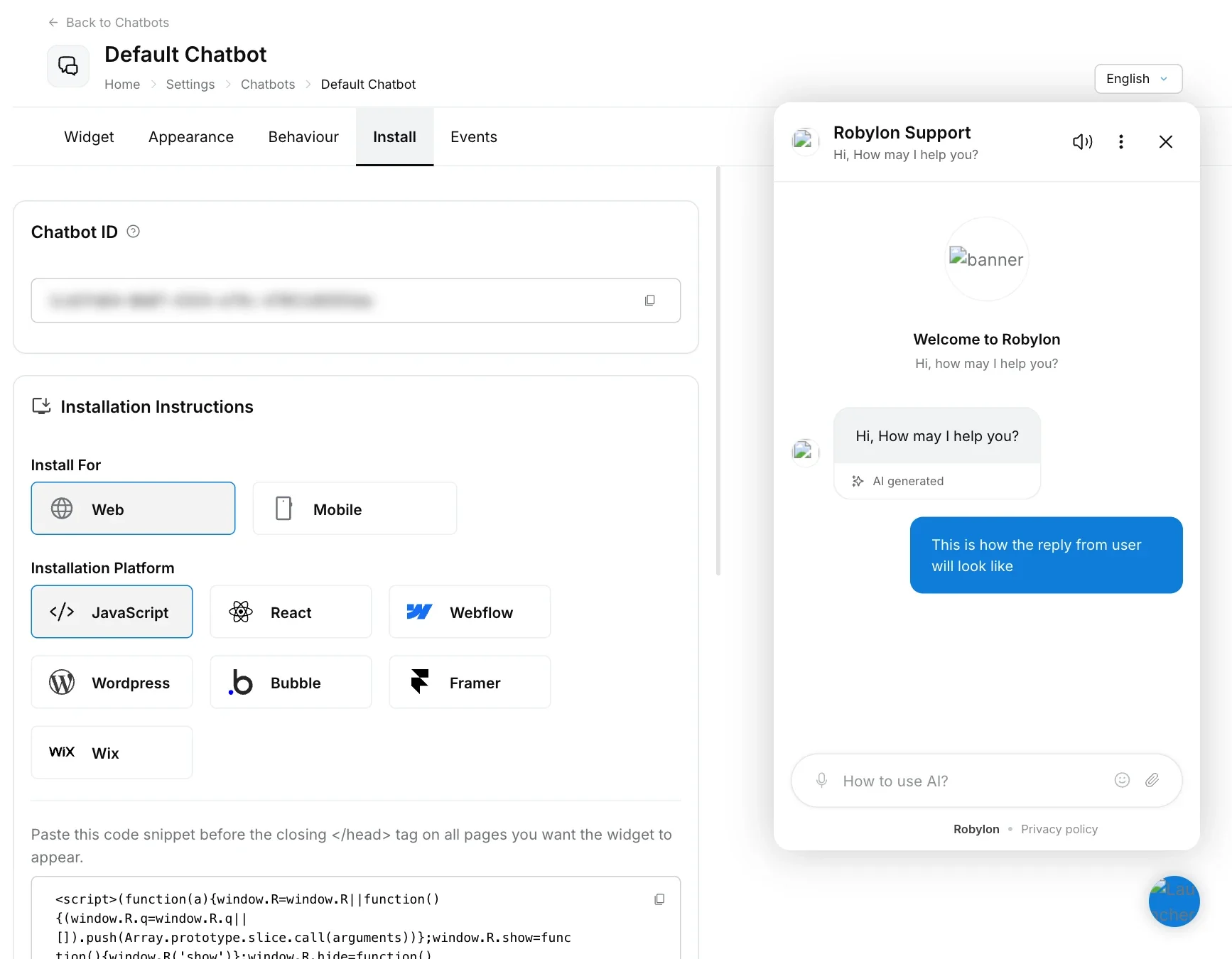
Open it from **Settings → Channels → Chatbot**, click your chatbot, then open the **Install** tab.
## How do I install the chatbot?
Copy the snippet for your platform from the **Install** tab and add it to every page where the chatbot should appear.
Go to **Settings → Channels → Chatbot**, click your chatbot and open **Install**.
Under **Install For**, choose **Web** or **Mobile**, then pick your **Installation Platform**.
Copy the snippet shown. It already contains your Chatbot ID.
Follow the instructions for your platform below, publish your site, and open a page to check that the launcher appears.
Platform guides for website builders:
| Platform | Guide |
| --- | --- |
| Bubble | [Install on Bubble](https://www.robylon.ai/docs/chatbot/install/bubble) |
| Framer | [Install on Framer](https://www.robylon.ai/docs/chatbot/install/framer) |
| Webflow | [Install on Webflow](https://www.robylon.ai/docs/chatbot/install/webflow) |
| Wix | [Install on Wix](https://www.robylon.ai/docs/chatbot/install/wix) |
| WordPress | [Install on WordPress](https://www.robylon.ai/docs/chatbot/install/wordpress) |
For a Shopify store, see [Shopify](https://www.robylon.ai/docs/integrations/shopify).
 ## How do I install the chatbot with JavaScript?
Choose **Web → JavaScript** and paste the snippet before the closing `` tag on every page where you want the chatbot. On most sites that means adding it once to a shared layout or template.
The snippet looks like this, with your own Chatbot ID in place of `YOUR_CHATBOT_ID`:
```html
```
Always copy the snippet from your own **Install** tab rather than from this page, so the ID and loader address are correct.
## How do I install the chatbot in a React app?
Choose **Web → React**, install the SDK, and add the `Chatbot` component where the chatbot should load.
```bash
npm install @robylon/web-react-sdk
# or
yarn add @robylon/web-react-sdk
```
```jsx
import { Chatbot } from "@robylon/web-react-sdk";
```
| Prop | Required | What it is |
| --- | --- | --- |
| `api_key` | Yes | Your Chatbot ID from the **Install** tab. |
| `user_id` | No | Your own ID for the logged-in customer. |
| `user_token` | No | A token from your own system for the customer. |
| `user_profile` | No | The customer's `email`, `name` and `mobile`, so agents see who they are talking to. |
The package page on npm (`@robylon/web-react-sdk`) has the full reference.
Robylon does not verify these values; it uses them as your page sends them. Workflows can use them through the `client_user_id`, `user_email` and `user_token` variables, for example to pass the token to your own API when looking up the customer's orders.
The JavaScript snippet from the **Install** tab sends only your Chatbot ID, not customer details. To pass a user ID and profile, use the React SDK or one of the [mobile SDKs](https://www.robylon.ai/docs/chatbot/install/mobile-apps).
## Can I add the chatbot to a mobile app?
Yes. Robylon has SDKs for Android, iOS, React Native and Flutter. See [Mobile apps](https://www.robylon.ai/docs/chatbot/install/mobile-apps).
## What do I need to allow if my site has a Content Security Policy?
If your site sets a Content Security Policy, allow these addresses or the chatbot will not load:
| Directive | Allow | Why |
| --- | --- | --- |
| `script-src` | `https://cdn.robylon.ai` | The widget loader is served from here. |
| `frame-src` | `https://chatbot.robylon.ai` | The chat window opens in an iframe. |
| `connect-src` | `https://api.robylon.ai` | The loader reads the widget configuration from here before the chat window opens. |
| `img-src` | `https://d1h2odiipi7033.cloudfront.net` | The launcher image is drawn on your page, not inside the chat window. |
## How do I know the chatbot is installed correctly?
Open a page where you added the snippet. The launcher should appear in the corner you chose in [Widget and behaviour](https://www.robylon.ai/docs/channels-connectors/chatbot-settings), after any delay you set in [Launch](https://www.robylon.ai/docs/chatbot/launch). Send a test message and check that it appears in your [inbox](https://www.robylon.ai/docs/inbox/unified-inbox).
If the launcher does not appear:
* Check that the snippet is on the page (view the page source and search for `robylon-chatbot-sdk`).
* Check your browser console for Content Security Policy errors and allow the addresses above.
* Check your display conditions: the launcher may be hidden on that URL or waiting for a delay.
## How do I install the chatbot with JavaScript?
Choose **Web → JavaScript** and paste the snippet before the closing `` tag on every page where you want the chatbot. On most sites that means adding it once to a shared layout or template.
The snippet looks like this, with your own Chatbot ID in place of `YOUR_CHATBOT_ID`:
```html
```
Always copy the snippet from your own **Install** tab rather than from this page, so the ID and loader address are correct.
## How do I install the chatbot in a React app?
Choose **Web → React**, install the SDK, and add the `Chatbot` component where the chatbot should load.
```bash
npm install @robylon/web-react-sdk
# or
yarn add @robylon/web-react-sdk
```
```jsx
import { Chatbot } from "@robylon/web-react-sdk";
```
| Prop | Required | What it is |
| --- | --- | --- |
| `api_key` | Yes | Your Chatbot ID from the **Install** tab. |
| `user_id` | No | Your own ID for the logged-in customer. |
| `user_token` | No | A token from your own system for the customer. |
| `user_profile` | No | The customer's `email`, `name` and `mobile`, so agents see who they are talking to. |
The package page on npm (`@robylon/web-react-sdk`) has the full reference.
Robylon does not verify these values; it uses them as your page sends them. Workflows can use them through the `client_user_id`, `user_email` and `user_token` variables, for example to pass the token to your own API when looking up the customer's orders.
The JavaScript snippet from the **Install** tab sends only your Chatbot ID, not customer details. To pass a user ID and profile, use the React SDK or one of the [mobile SDKs](https://www.robylon.ai/docs/chatbot/install/mobile-apps).
## Can I add the chatbot to a mobile app?
Yes. Robylon has SDKs for Android, iOS, React Native and Flutter. See [Mobile apps](https://www.robylon.ai/docs/chatbot/install/mobile-apps).
## What do I need to allow if my site has a Content Security Policy?
If your site sets a Content Security Policy, allow these addresses or the chatbot will not load:
| Directive | Allow | Why |
| --- | --- | --- |
| `script-src` | `https://cdn.robylon.ai` | The widget loader is served from here. |
| `frame-src` | `https://chatbot.robylon.ai` | The chat window opens in an iframe. |
| `connect-src` | `https://api.robylon.ai` | The loader reads the widget configuration from here before the chat window opens. |
| `img-src` | `https://d1h2odiipi7033.cloudfront.net` | The launcher image is drawn on your page, not inside the chat window. |
## How do I know the chatbot is installed correctly?
Open a page where you added the snippet. The launcher should appear in the corner you chose in [Widget and behaviour](https://www.robylon.ai/docs/channels-connectors/chatbot-settings), after any delay you set in [Launch](https://www.robylon.ai/docs/chatbot/launch). Send a test message and check that it appears in your [inbox](https://www.robylon.ai/docs/inbox/unified-inbox).
If the launcher does not appear:
* Check that the snippet is on the page (view the page source and search for `robylon-chatbot-sdk`).
* Check your browser console for Content Security Policy errors and allow the addresses above.
* Check your display conditions: the launcher may be hidden on that URL or waiting for a delay.