# Email Channel: Receive and Handle Email Tickets in Robylon
How emails to your support address become tickets in Robylon, how replies are threaded, how the AI answers them, and how to set sender names and signatures.
> Source: https://www.robylon.ai/docs/channels/email
> Section: Email
Open it from **Settings → Channels → Email**.
## How do I connect my support email?
Click **Connect Domain** on the **Email Domains** page. The steps for Google Workspace, Microsoft 365 and other providers are in [Connect email](https://www.robylon.ai/docs/email-domains).
## What does the Email Domains page show?
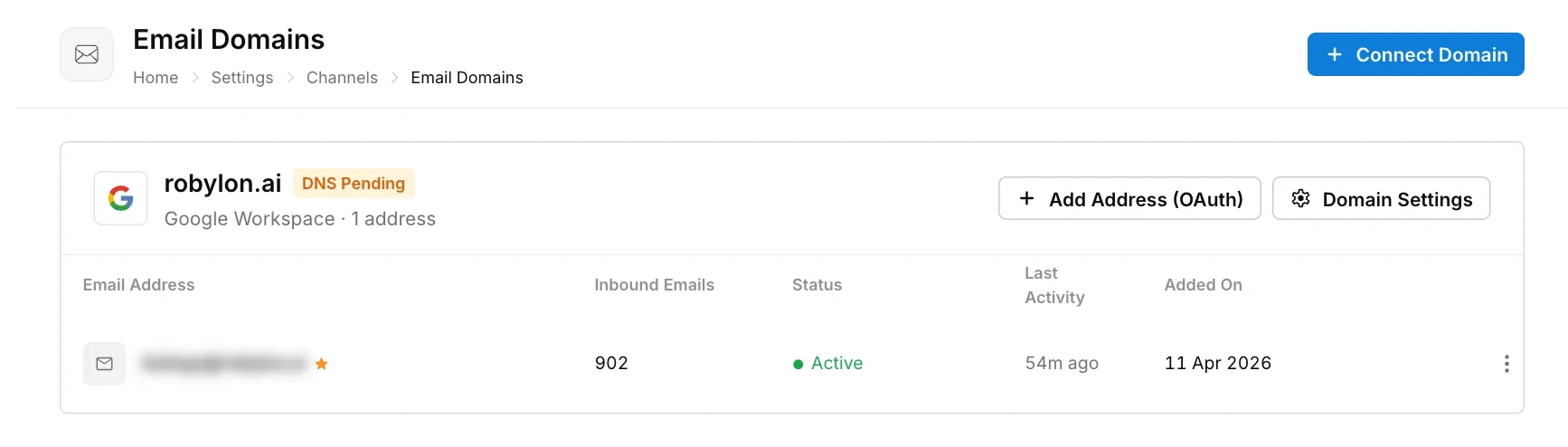
The page is titled **Email Domains** and lists every connected domain as a card. Each card shows the domain, its status, how it is connected (for example **Google Workspace**) and the number of addresses. A domain's status is **Active**, **DNS Pending**, **DNS Failed** or **Disconnected**.
Under each domain, every address has a row:
| Column | What it shows |
| --- | --- |
| **Email Address** | The connected address, and its sender name if one is set. The default address is marked with a **Default address** icon. |
| **Inbound Emails** | How many emails Robylon has received on it. |
| **Status** | **Active** when Robylon is receiving mail. Other statuses are **Pending**, **Failing**, **Reconnecting…** and **Disconnected**. |
| **Last Activity** | When the last email arrived. |
| **Added On** | When the address was connected, and by whom. |
Buttons on the domain's card:
- **Add Address (OAuth):** connect another Google Workspace or Microsoft 365 mailbox on the domain.
- **Add Address (DNS):** add an address on a domain whose DNS records are verified.
- **Domain Settings:** open the domain's details.
The menu at the end of a row has **View Settings**, **Set as Default** and **Remove**. When an address stops syncing, the card shows how many addresses are failing, and a **Reconnect** button appears on the row. Click it and sign in again.
 ## What is in Domain Settings?
**Domain Settings** has three tabs:
| Tab | What it shows |
| --- | --- |
| **DNS Records** | The records to add at your DNS provider, each with a copy button, and **Verify Now** to check them again. |
| **Domain** | The **Provider**, the number of **Connected Addresses**, when and by whom it was added, and **Disconnect Domain**. |
| **Email Forwarding** | Marked **Coming Soon**. |
**Disconnect Domain** removes all the domain's addresses and stops email sync. You can connect the domain again later, but its addresses have to be added back one by one.
## How do incoming emails become tickets?
Robylon checks each connected mailbox about every minute and turns each new email into a ticket, with the sender as the contact.
- **New email:** creates a new ticket.
- **Reply to an existing ticket:** added to that ticket. Robylon matches replies using the email's reply headers, then the ticket reference in the subject (such as `[#R-1234]`), then the subject and sender.
- **People in CC:** recorded on the ticket, and added as contacts.
When a customer replies to a ticket that is resolved or waiting on the customer, the ticket reopens. When they reply to a closed ticket, the reply starts a new ticket.
Robylon also filters out mail that should not become a ticket:
- Bounces are linked to the original email and marked as bounced.
- Auto-replies, mailing list mail and mail loops are skipped.
- Out-of-office replies do not reopen a ticket.
## What happens after an email ticket arrives?
New email tickets are picked up by the AI first:
1. The ticket is assigned to the Robylon AI.
2. Your AI agents and workflows for email run. They can answer from your Knowledge Base, look up data with tools, add tags and properties, or hand over to your team. See [Custom AI agents](https://www.robylon.ai/docs/ai-agents/custom-ai-agents) and [Workflows](https://www.robylon.ai/docs/product/product).
3. If you have turned on **Auto-acknowledgment**, the customer receives it about 30 seconds after the ticket is created. Outside working hours, your **Auto-reply outside working hours** message is sent instead.
4. Tickets handed over are assigned to your team according to your [assignment rules](https://www.robylon.ai/docs/human-users/assignment), and worked in the [ticket view](https://www.robylon.ai/docs/inbox/tickets).
When the customer replies, the reply is added to the ticket, and workflows set to run on a customer reply start again.
Set the acknowledgement under **Email assignment** in your group's settings, see [Groups](https://www.robylon.ai/docs/human-users/groups). Set the out-of-hours reply under **Email Messages** in your working hours, see [Business hours](https://www.robylon.ai/docs/human-users/business-hours).
## How do I set the sender name?
Open the address with **View Settings** (in the row menu). This opens **Mailbox Settings**. On the **General** tab, under **Display Name**:
| Setting | What it does |
| --- | --- |
| **Automated & AI Reply Name** | The sender name on replies from the AI and automations, for example "Acme Support". |
| **Agent Reply Name** | The sender name on replies from your team, for example "Sam from Acme". |
| **Allow Individual Agent Display Names** | Lets each agent set their own sender name for this address in their profile. It replaces the agent reply name on their replies. |
The **Connection** section shows the **Auth Method** (for example **OAuth (Google Workspace)** or **Domain (DNS Verified)**), when and by whom it was **Connected On**, and when it was **Last Synced**. Click **Save** after making changes.
## How do I set email signatures?
Open the address with **View Settings** and go to the **Signatures** tab:
| Setting | What it does |
| --- | --- |
| **Automated & AI Reply Signature** | Added to every AI agent reply, fixed reply and automation sent from this address. |
| **Agent Reply Signature** | The default signature for your team's replies, used when an agent has not set their own. |
| **Allow Individual Agent Signatures** | Lets agents add their own signature for this address in their profile. It replaces the default on their replies. |
Each signature has a small editor for font, size and images. Click **Save** when you are done.
When individual names or signatures are allowed, each agent sets their own from their avatar at the bottom of the left sidebar, then **Account Settings → Email Identity**. Where it is not allowed, the address uses the mailbox defaults.
## Are there size limits for attachments?
Yes:
- **Incoming:** up to 30 MB per attachment and 40 MB of attachments per email. Emails larger than 50 MB cannot be read.
- **Outgoing:** up to 25 MB per email.
## How do I stop receiving email on an address?
Open the row menu for the address and click **Remove**, then confirm. Robylon stops collecting its email and you can no longer send from it until you add it again. Existing tickets from that address stay in Robylon.
You cannot remove the default address. Set another address as default first with **Set as Default**.
## Which address is the default?
The first address you add on a domain becomes its default automatically. To change it, open the row menu of another address and click **Set as Default**. The default address is marked with a **Default address** icon on the **Email Domains** page.
## What is in Domain Settings?
**Domain Settings** has three tabs:
| Tab | What it shows |
| --- | --- |
| **DNS Records** | The records to add at your DNS provider, each with a copy button, and **Verify Now** to check them again. |
| **Domain** | The **Provider**, the number of **Connected Addresses**, when and by whom it was added, and **Disconnect Domain**. |
| **Email Forwarding** | Marked **Coming Soon**. |
**Disconnect Domain** removes all the domain's addresses and stops email sync. You can connect the domain again later, but its addresses have to be added back one by one.
## How do incoming emails become tickets?
Robylon checks each connected mailbox about every minute and turns each new email into a ticket, with the sender as the contact.
- **New email:** creates a new ticket.
- **Reply to an existing ticket:** added to that ticket. Robylon matches replies using the email's reply headers, then the ticket reference in the subject (such as `[#R-1234]`), then the subject and sender.
- **People in CC:** recorded on the ticket, and added as contacts.
When a customer replies to a ticket that is resolved or waiting on the customer, the ticket reopens. When they reply to a closed ticket, the reply starts a new ticket.
Robylon also filters out mail that should not become a ticket:
- Bounces are linked to the original email and marked as bounced.
- Auto-replies, mailing list mail and mail loops are skipped.
- Out-of-office replies do not reopen a ticket.
## What happens after an email ticket arrives?
New email tickets are picked up by the AI first:
1. The ticket is assigned to the Robylon AI.
2. Your AI agents and workflows for email run. They can answer from your Knowledge Base, look up data with tools, add tags and properties, or hand over to your team. See [Custom AI agents](https://www.robylon.ai/docs/ai-agents/custom-ai-agents) and [Workflows](https://www.robylon.ai/docs/product/product).
3. If you have turned on **Auto-acknowledgment**, the customer receives it about 30 seconds after the ticket is created. Outside working hours, your **Auto-reply outside working hours** message is sent instead.
4. Tickets handed over are assigned to your team according to your [assignment rules](https://www.robylon.ai/docs/human-users/assignment), and worked in the [ticket view](https://www.robylon.ai/docs/inbox/tickets).
When the customer replies, the reply is added to the ticket, and workflows set to run on a customer reply start again.
Set the acknowledgement under **Email assignment** in your group's settings, see [Groups](https://www.robylon.ai/docs/human-users/groups). Set the out-of-hours reply under **Email Messages** in your working hours, see [Business hours](https://www.robylon.ai/docs/human-users/business-hours).
## How do I set the sender name?
Open the address with **View Settings** (in the row menu). This opens **Mailbox Settings**. On the **General** tab, under **Display Name**:
| Setting | What it does |
| --- | --- |
| **Automated & AI Reply Name** | The sender name on replies from the AI and automations, for example "Acme Support". |
| **Agent Reply Name** | The sender name on replies from your team, for example "Sam from Acme". |
| **Allow Individual Agent Display Names** | Lets each agent set their own sender name for this address in their profile. It replaces the agent reply name on their replies. |
The **Connection** section shows the **Auth Method** (for example **OAuth (Google Workspace)** or **Domain (DNS Verified)**), when and by whom it was **Connected On**, and when it was **Last Synced**. Click **Save** after making changes.
## How do I set email signatures?
Open the address with **View Settings** and go to the **Signatures** tab:
| Setting | What it does |
| --- | --- |
| **Automated & AI Reply Signature** | Added to every AI agent reply, fixed reply and automation sent from this address. |
| **Agent Reply Signature** | The default signature for your team's replies, used when an agent has not set their own. |
| **Allow Individual Agent Signatures** | Lets agents add their own signature for this address in their profile. It replaces the default on their replies. |
Each signature has a small editor for font, size and images. Click **Save** when you are done.
When individual names or signatures are allowed, each agent sets their own from their avatar at the bottom of the left sidebar, then **Account Settings → Email Identity**. Where it is not allowed, the address uses the mailbox defaults.
## Are there size limits for attachments?
Yes:
- **Incoming:** up to 30 MB per attachment and 40 MB of attachments per email. Emails larger than 50 MB cannot be read.
- **Outgoing:** up to 25 MB per email.
## How do I stop receiving email on an address?
Open the row menu for the address and click **Remove**, then confirm. Robylon stops collecting its email and you can no longer send from it until you add it again. Existing tickets from that address stay in Robylon.
You cannot remove the default address. Set another address as default first with **Set as Default**.
## Which address is the default?
The first address you add on a domain becomes its default automatically. To change it, open the row menu of another address and click **Set as Default**. The default address is marked with a **Default address** icon on the **Email Domains** page.