# Custom AI Agents in Robylon: Types and How to Create One
Understand the two types of custom AI agent (sub-agent and single agent), which channels each works on, and how to create and configure one.
> Source: https://www.robylon.ai/docs/ai-agents/custom-ai-agents
> Section: AI agents
A custom AI agent is an agent you build for your own use cases: handling refunds, tracking orders, answering account questions, making calls. Each one has its own instructions, tools and model settings, and runs on the channels you choose.
Robylon also creates agents for you, which you configure but do not create: the [triage agent](https://www.robylon.ai/docs/ai-agents/triage-agent) (called the master agent in the dashboard), one for chat and one for email, and the [Knowledge Base agent](https://www.robylon.ai/docs/ai-agents/kb-agent).
Open your agents from [**Settings → Workflows & AI Agents → AI Agents**](https://app.robylon.ai/settings/ai-agents).
## Custom agent types
There are two types. A custom agent is either a sub-agent, which works behind the triage agent, or a single agent, which works alone.
| Type | Channels | What it does |
| --- | --- | --- |
| [Sub-agent](https://www.robylon.ai/docs/ai-agents/sub-agents) | Chat or email | Handles one area, for example returns, after the [triage agent](https://www.robylon.ai/docs/ai-agents/triage-agent) hands it the conversation. |
| [Single agent](https://www.robylon.ai/docs/ai-agents/single-agents) | Chat or voice | Handles the whole conversation on its own, with no transfers between agents. Every voice agent is a single agent. |
The dashboard calls the triage agent and its sub-agents a **Multi Agent** setup, because they work as a team.
## Choosing between sub-agents and a single agent
Use a **single agent** when one agent can cover everything customers ask on a channel. The dashboard describes it as "single thread, no transfers, faster first responses".
Use **sub-agents** when customers ask about several distinct areas that each need their own instructions and tools. The triage agent routes each conversation to the right one; the dashboard describes this as "master agent routes to experts for complex workflows". Splitting the work keeps each agent's instructions short and focused, which makes it easier to test and change one area without affecting the others.
Email and ticket channels only support sub-agents. Voice only supports single agents.
## How a conversation reaches an AI agent
A workflow hands the conversation to an agent. There are two ways to choose which one:
* **Default Agent on the trigger:** on a **When a new chat is created** trigger, choose a **Default Agent**. That agent starts every new conversation on the channel. See [the Default Agent](https://www.robylon.ai/docs/product/triggers#the-default-agent-on-a-chat-trigger).
* **Handover to AI:** add the **Handover to AI** action at any point in a workflow and pick the agent under **AI Agent**. The workflow ends there and the agent takes over. See [workflow actions](https://www.robylon.ai/docs/product/product).
In both cases you can pick:
| Pick | What happens |
| --- | --- |
| The [triage agent](https://www.robylon.ai/docs/ai-agents/triage-agent) | It reads the conversation and routes it to the right sub-agent, the Knowledge Base agent or a human. |
| A [sub-agent](https://www.robylon.ai/docs/ai-agents/sub-agents) | The conversation goes straight to that specialist, skipping routing. It can still hand back to the triage agent when the customer changes topic. |
| A [single agent](https://www.robylon.ai/docs/ai-agents/single-agents) | It handles the whole conversation by itself. |
A workflow can also use an **AI Agent** block, which lets an agent handle the conversation from that point. See [AI Agent blocks](https://www.robylon.ai/docs/product/ai-agent-blocks#how-the-ai-agent-block-works).
## Create a custom agent
Choose a channel group, choose the agent type, then name the agent and pick its channels.
Go to [**Settings → Workflows & AI Agents → AI Agents**](https://app.robylon.ai/settings/ai-agents) and click **Create AI Agent**.
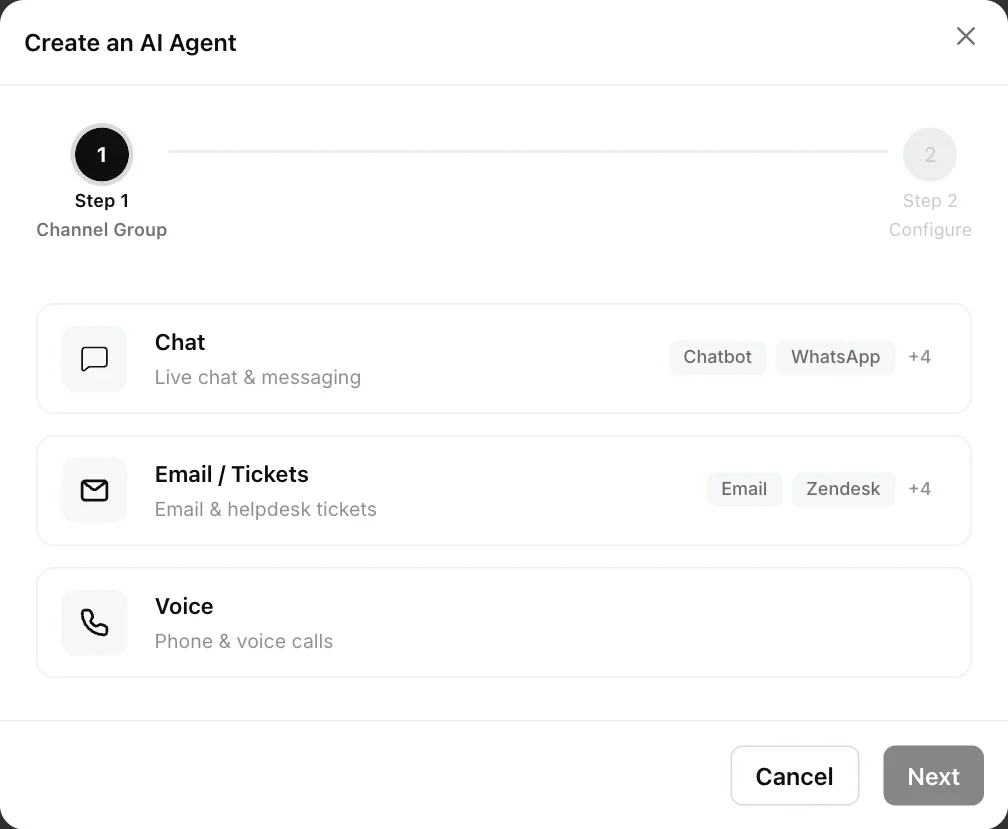
Pick **Chat** (live chat and messaging), **Email / Tickets** (email and helpdesk tickets) or **Voice** (phone and voice calls), then click **Next**.
For **Chat**, choose **Single Agent**, or **Multi Agent** to create a sub-agent. **Email / Tickets** always creates a sub-agent and **Voice** always creates a single agent, so this step is skipped for them.
Enter an **Agent Name**, choose the channels it runs on under **Select Channels**, and add a short **Agent Purpose**. Voice agents have no channel list.
Click **Create Agent**. The agent opens so you can write its instructions and add tools. It stays a draft until you publish it.
For voice agents, the rest of the setup (voice, telephony, call settings) is covered in [creating a voice agent](https://www.robylon.ai/docs/voice/create-voice-agent).
 ## Supported channels
Each channel group covers these kinds of channel:
| Channel group | Channels include |
| --- | --- |
| Chat | Chatbot (Robylon Chat), WhatsApp, Instagram, Facebook, Slack, Microsoft Teams, Freshchat, Intercom, SalesIQ, Twilio Text |
| Email / Tickets | Email (Robylon Email), Zendesk, Freshdesk, Zoho Desk, Salesforce Ticket, Vtiger |
| Voice | Phone and voice calls |
**Select Channels** only lists the channels in that group that are already connected in your workspace. Connect a channel first from [all channels](https://www.robylon.ai/docs/channels-connectors/channels).
## Agent settings
Every agent opens in a panel with its instructions on the left and settings on the right. The sections depend on the type (for the triage agent's sections, see [triage agent](https://www.robylon.ai/docs/ai-agents/triage-agent#triage-agent-settings)):
| Section | Sub-agent | Single agent | What it does |
| --- | --- | --- | --- |
| Instructions | Yes | Yes (**System Prompt**) | The main prompt that defines the agent's role, rules and steps. |
| Custom Instructions | Yes | No | Extra rules on top of the main instructions. |
| Agent Instructions | No | Yes | Structured guidance in fixed categories. See [single agents](https://www.robylon.ai/docs/ai-agents/single-agents). |
| Agents | Yes | No | The other agents this agent can hand a conversation to. |
| Tools Available | Yes | Yes | The tools the agent can call, for example a human handover. See [Tools](https://www.robylon.ai/docs/data-and-integrations/api-tools-functions). |
| User Info | Yes | Yes | Variables about the current customer that the agent sees on every turn. Type `{` to insert a variable. |
| Rich Responses | No | Yes | Rich message types in chat. The only one today is **Smart Suggestions**. |
| LLM Configuration | Yes | Yes | The model and its settings. |
## LLM Configuration settings
**LLM Configuration** sets the model the agent uses and how it generates replies.
| Setting | Range | What it does |
| --- | --- | --- |
| AI Model | See [model comparison](https://www.robylon.ai/docs/model-comparison) | The language model the agent runs on. |
| Temperature | Deterministic to Random | Lower values give consistent, predictable replies. Keep it low for support. |
| Max Tokens | 10 to 8,000 | The longest reply the model can write. |
| Thinking Tokens | 0 to 8,000 | How much the model may reason before it replies. 0 turns thinking off. |
When a value is not set, Robylon uses a temperature of 0, 4,000 max tokens and 0 thinking tokens.
## Agent statuses
Each agent has a status, shown in the list and at the top of the agent panel.
* **Live:** the published version is answering customers. The live version is read-only.
* **Draft:** the agent has never been published. You edit a working copy, which only reaches customers when you publish it.
* **Paused:** the agent has been unpublished and no longer answers customers.
Use the status menu at the top of the panel to switch between the live version (**Live (read-only)**) and your working copy (**Draft (editable)**). To change an agent, click **Edit**, make your changes and click **Save**. To make them live, click **Publish**, enter a name under **New Version** (Robylon suggests one based on the date and time) and click **Publish** again. Every publish is saved in the agent's [version history](https://www.robylon.ai/docs/ai-agents/version-history).
Click **Pause** to take an agent offline. A paused sub-agent stops receiving conversations from the next customer message.
## Find an agent in the list
Filter the list by **Type** (Multi Agent, with Master Agent for the triage agent and Sub Agent under it, or Single Agent), **Status** (Live, Draft, Paused) or **Channels**, or search by name. Each row shows the agent's type, status, channels, number of runs and when it was last updated and by whom.